1.1
Open the theme editor
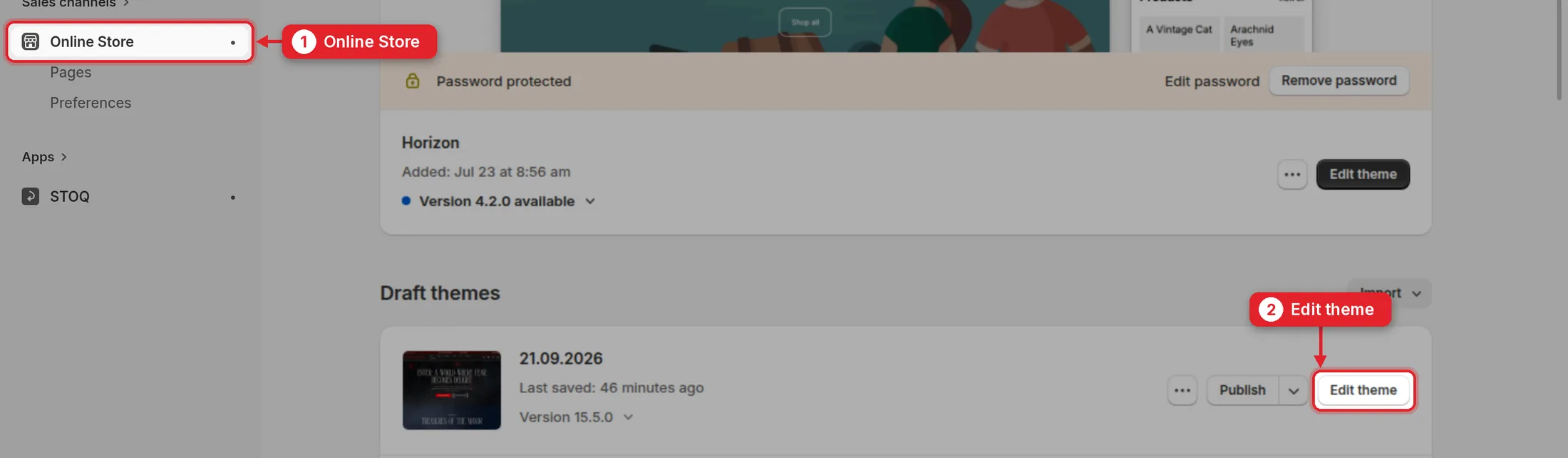
In the left menu click Online Store. Next to the Fright Delights theme click Edit theme.
Fright Delights · Shopify admin
How to keep the store up to date yourself: change texts and pictures, add new products, manage the categories, add events and journal posts. Every step shows where to click; just follow the red numbers.
Part 1
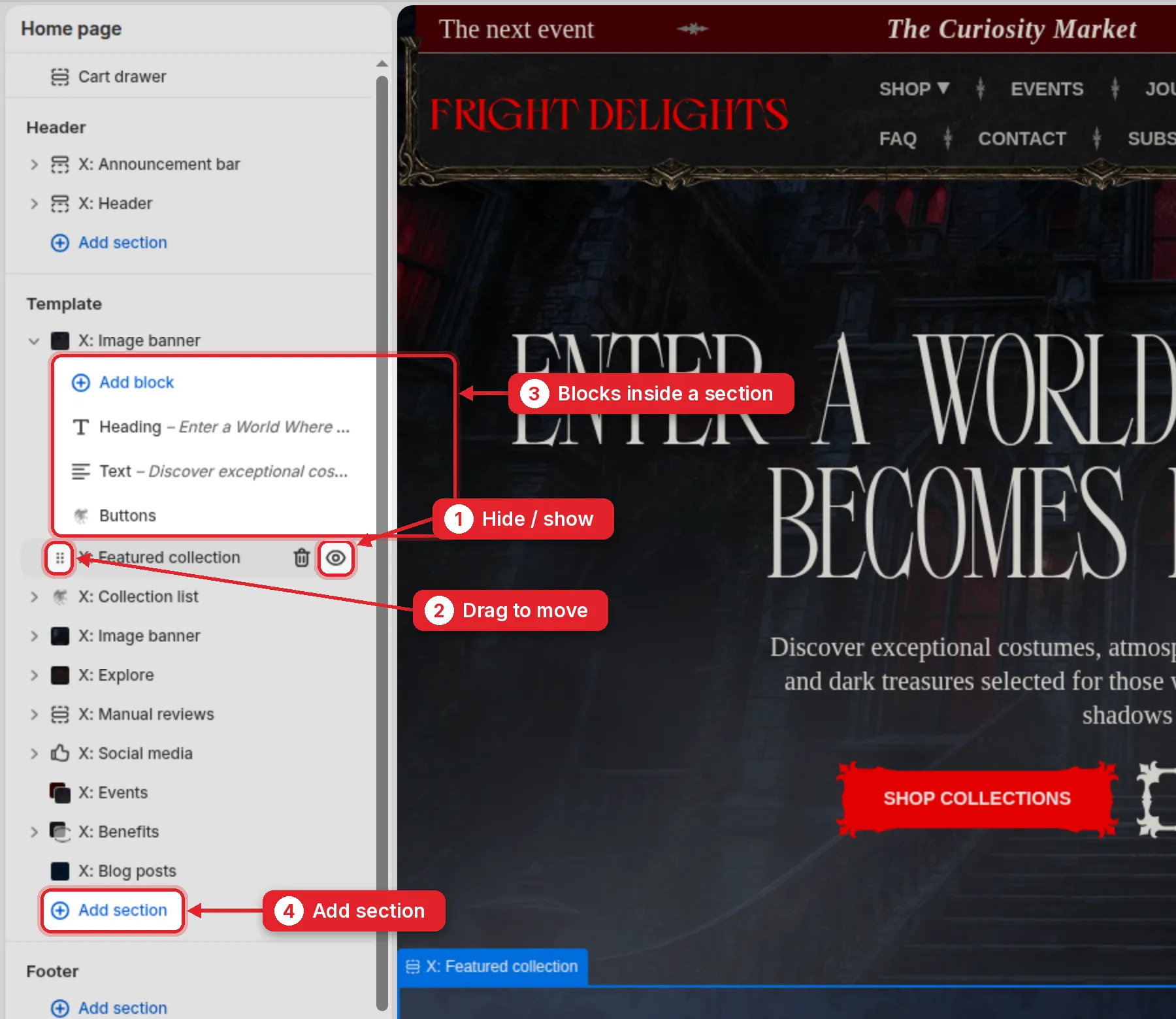
Every text, banner, button and block of the site lives in the theme editor. On the right you see the real page, on the left you change it.
In the left menu click Online Store. Next to the Fright Delights theme click Edit theme.
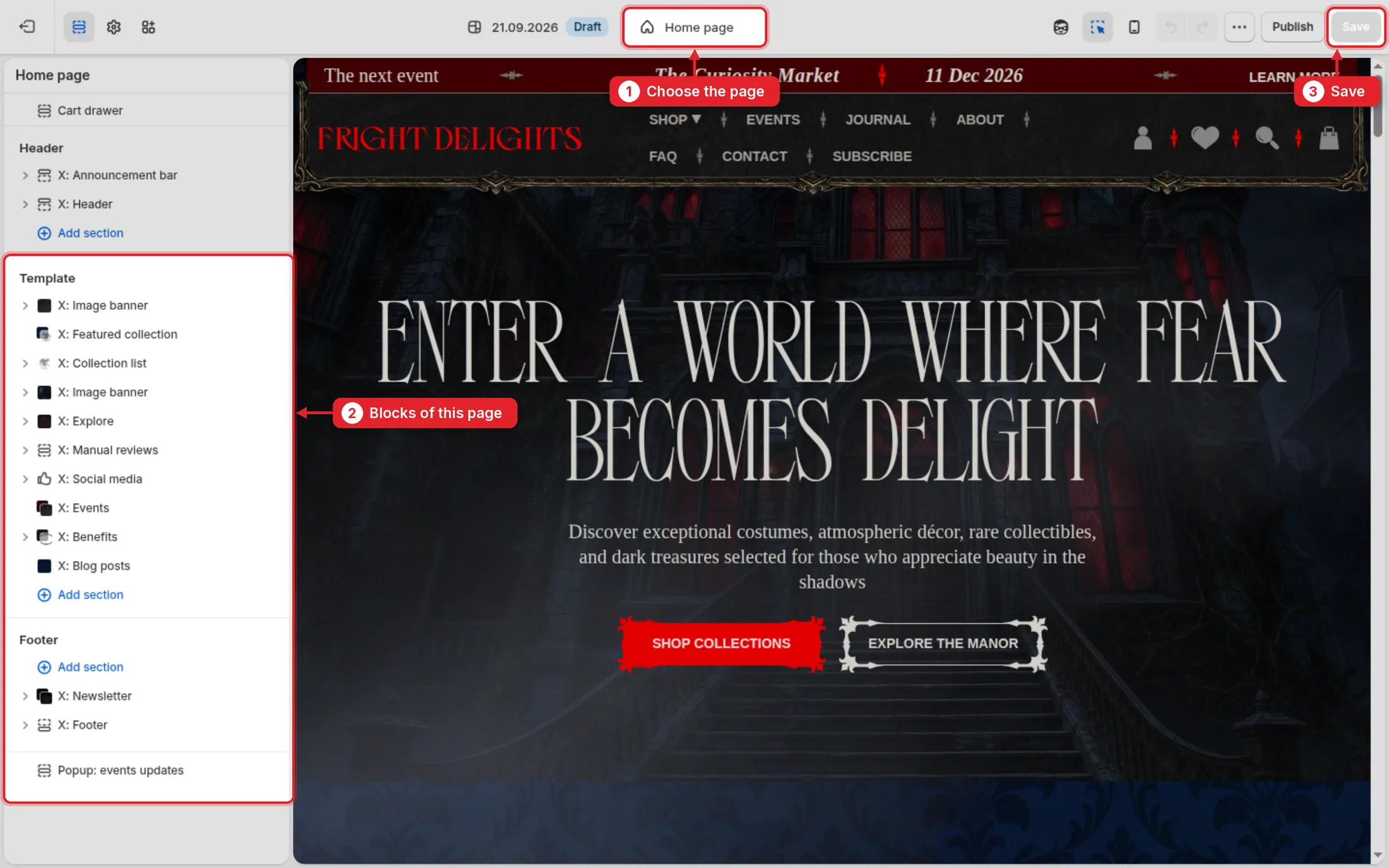
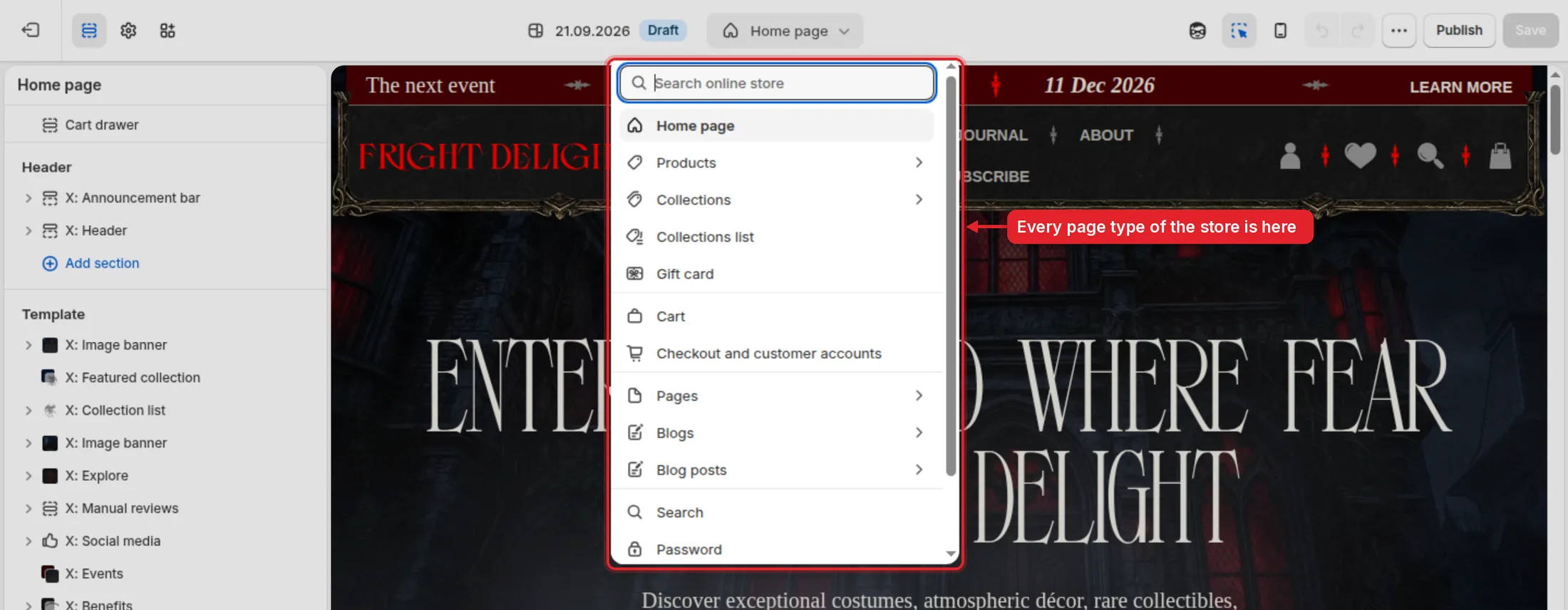
Click the page name at the top. Pages holds About us, Events & Experiences, FAQ, Contact and the other pages. Blogs is the Journal. Products and Collections are the layouts shared by all product and collection pages, so a change there applies to every one of them at once.
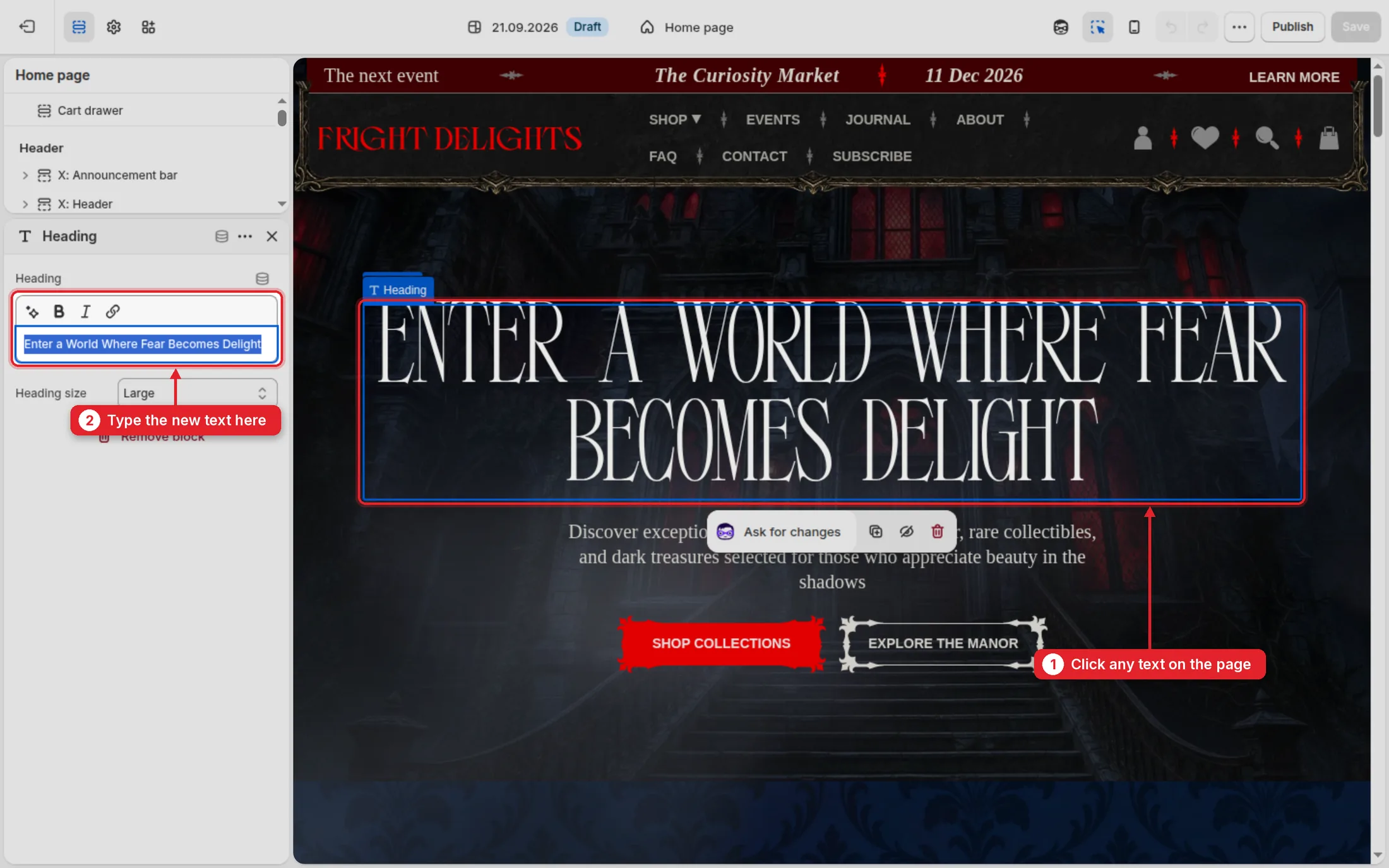
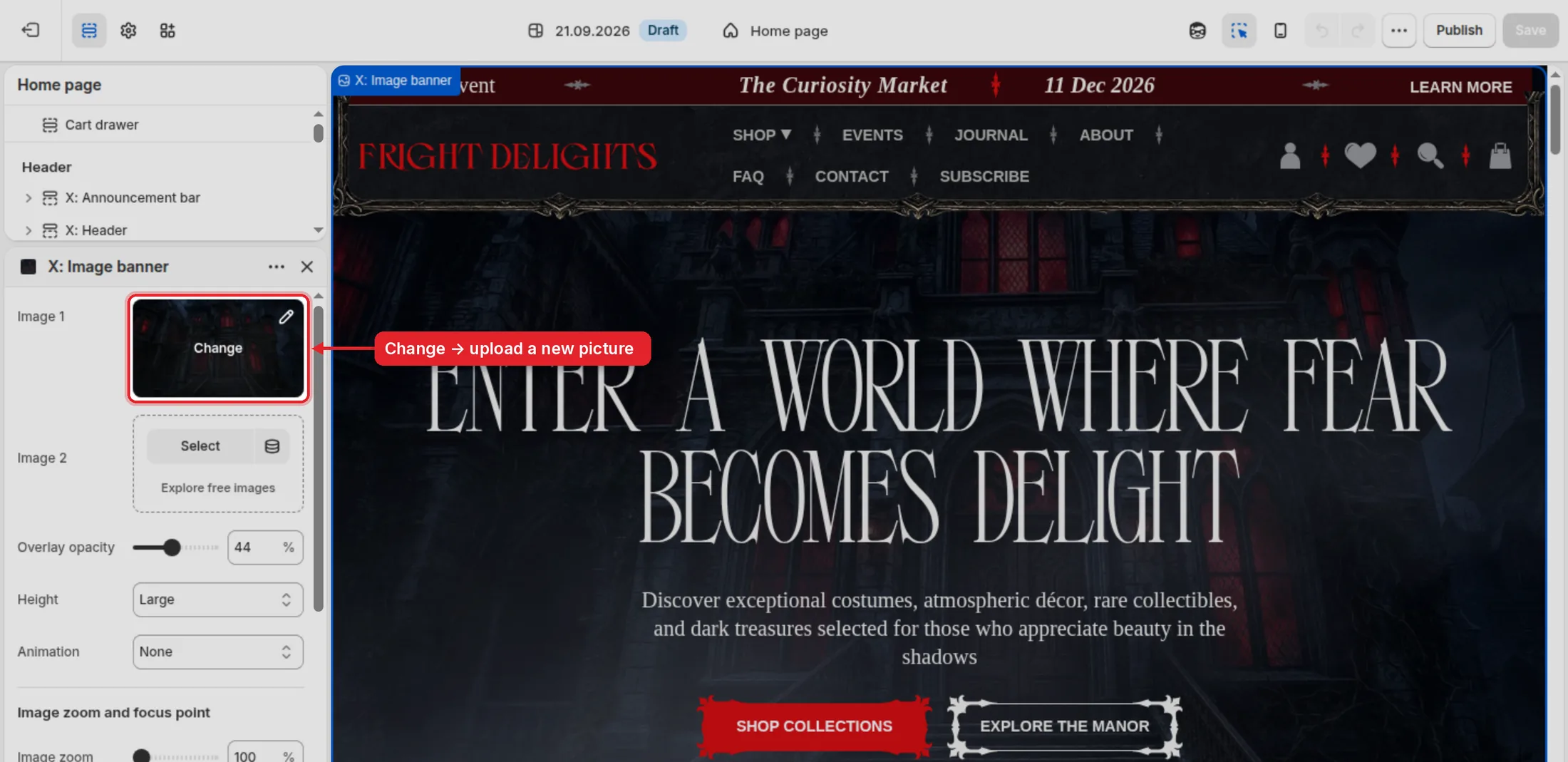
Click the block with the picture. On the left, click the image and then Change: upload a new file or pick one you uploaded before. For wide banners use large horizontal photos, 2000 px wide or more.
Part 2
Three things decide where a product appears: its Type (the category, a room of the Manor), its Subcategory field and its tags (the other collections). The bestsellers on the home page are picked by hand (2.7).
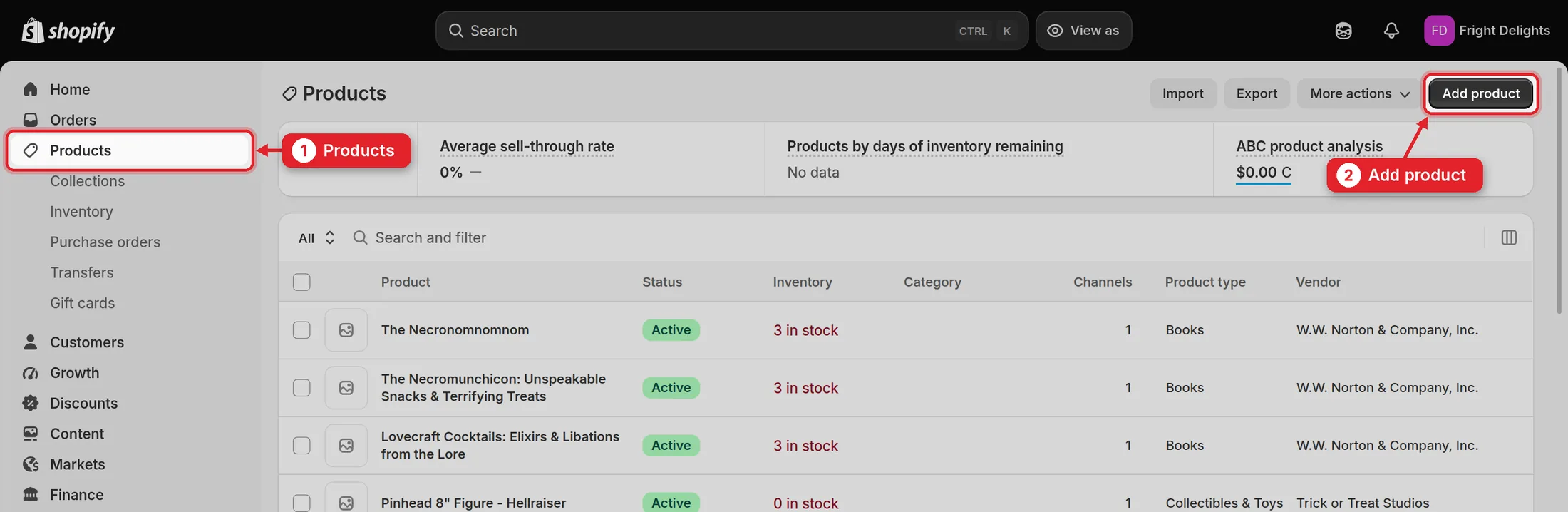
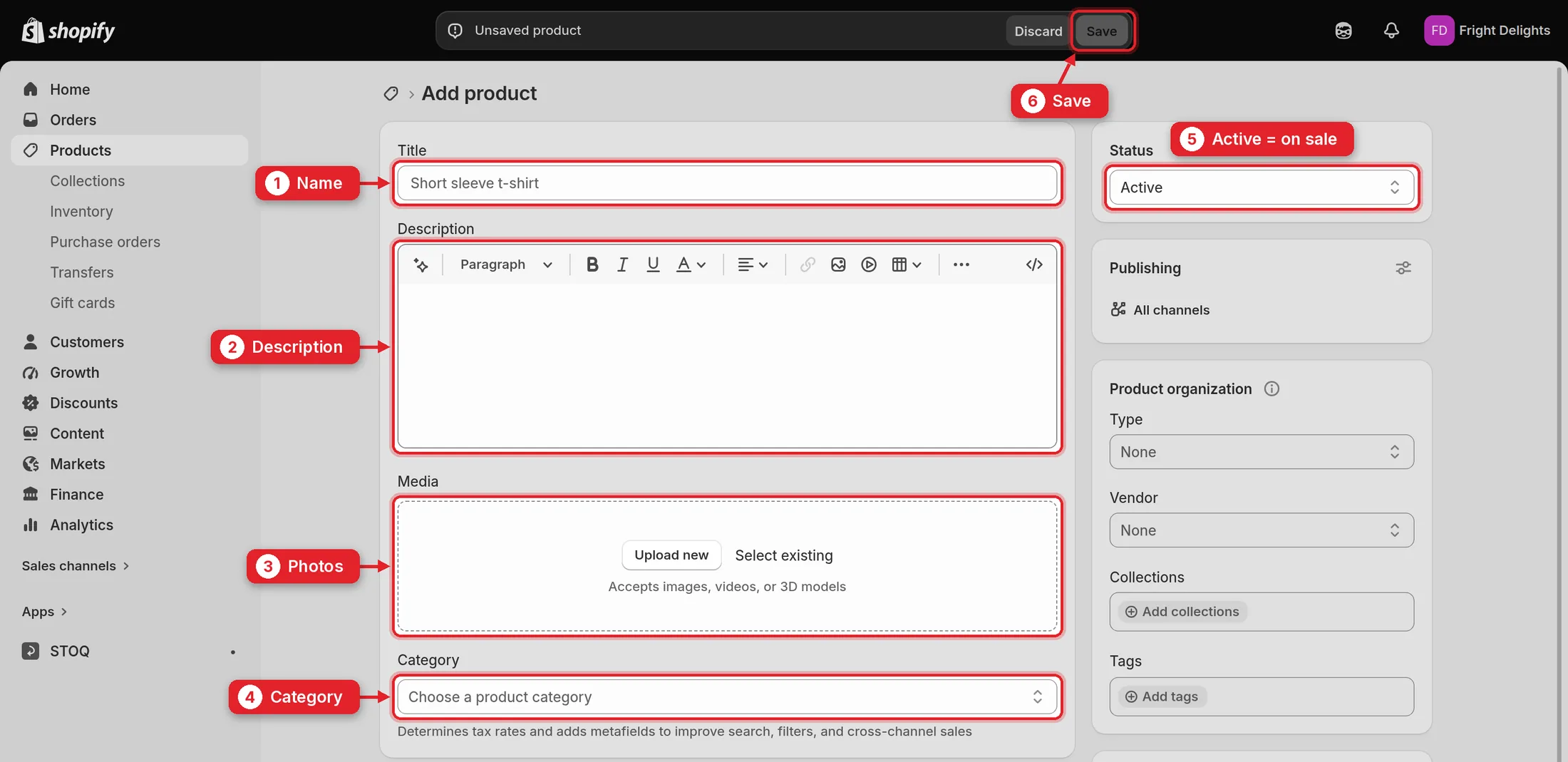
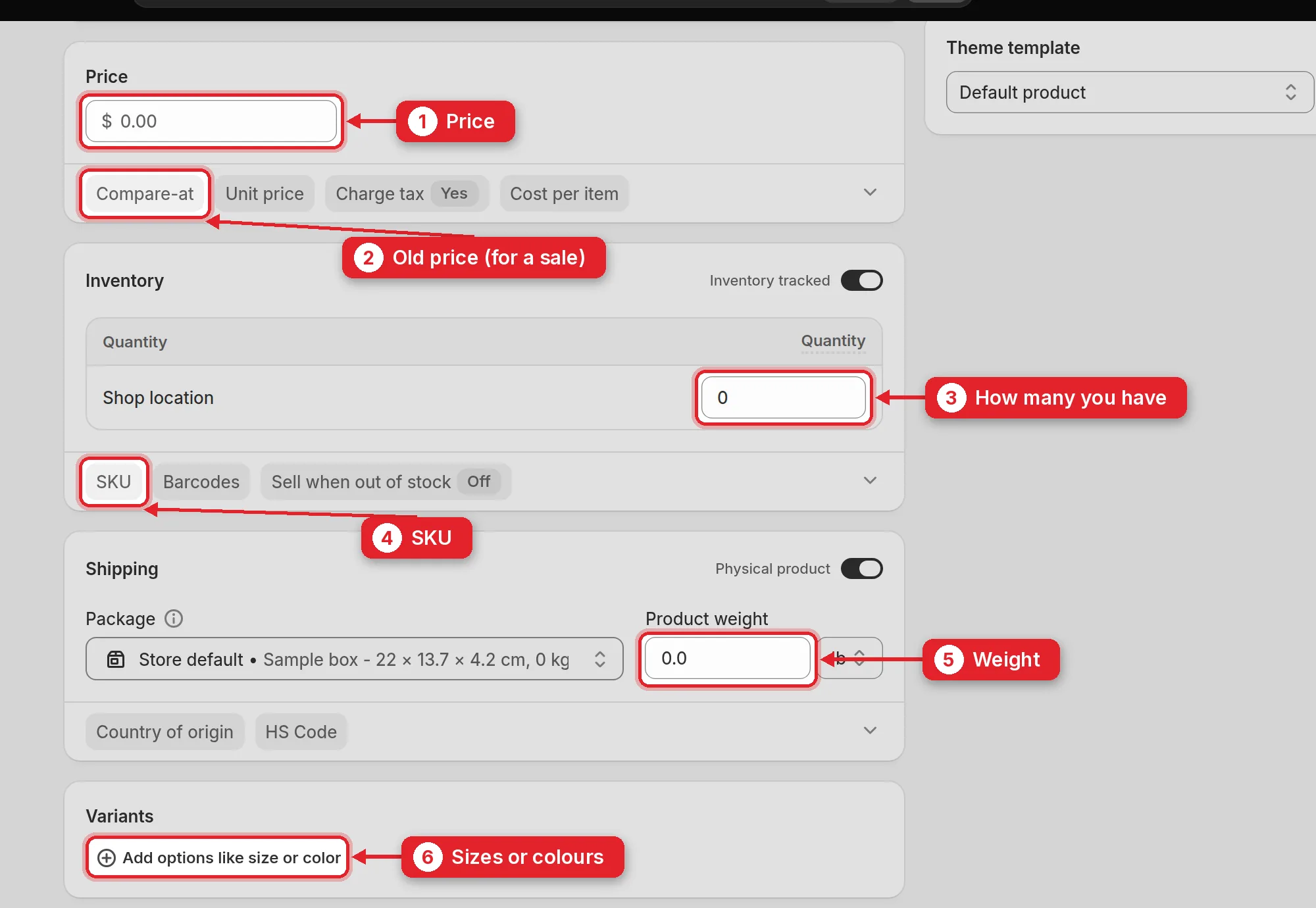
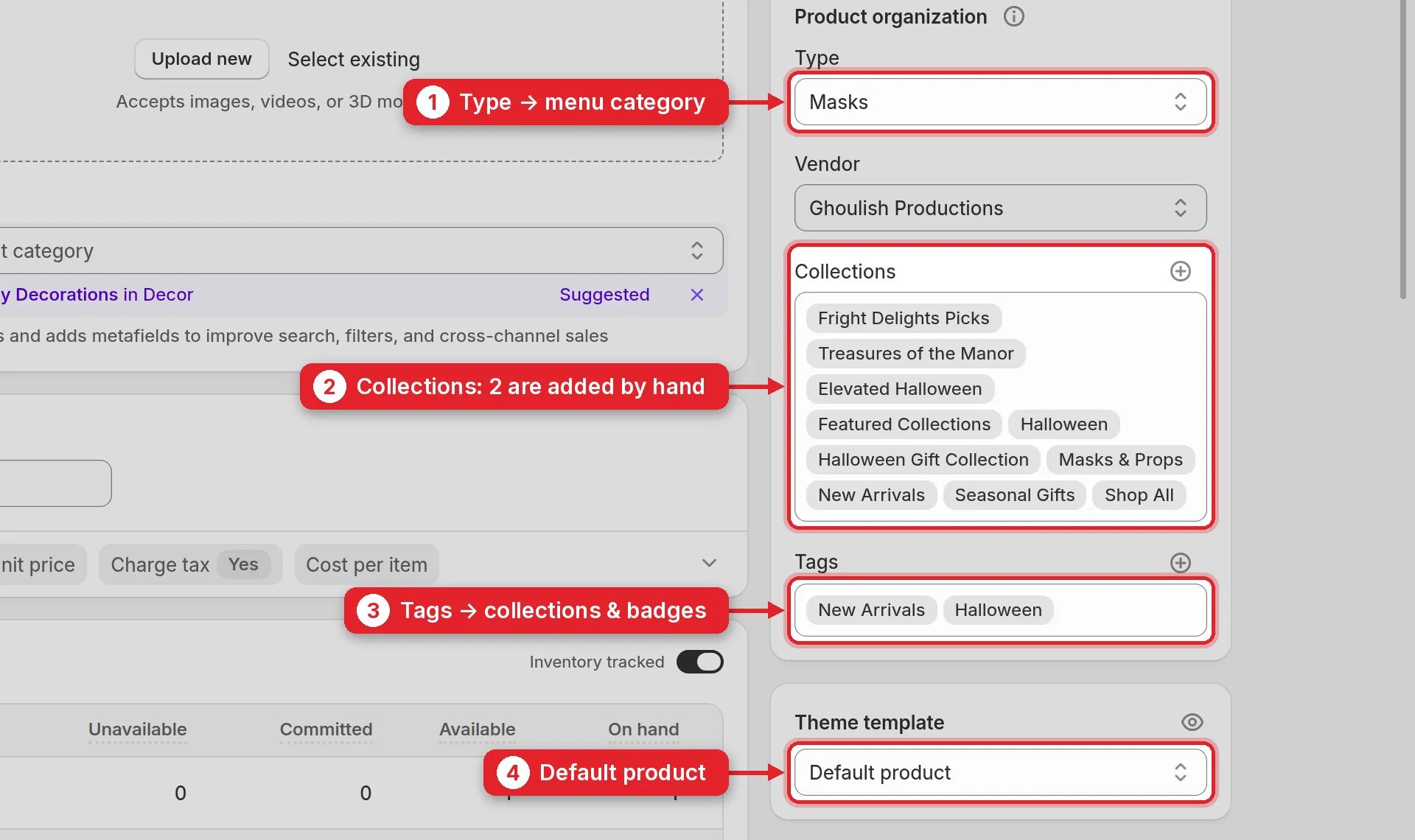
Type → category (room) → subcategories
| Type | Category page | Subcategories to choose from |
|---|---|---|
| Masks | Hall of Faces | Latex Masks, Injection-Molded Masks |
| Props & Décor | The Drawing Room | Pumpkins & Jack-o’-Lanterns, Props & Replicas, Hanging & Gore Décor, Framed Art & Oddities |
| Makeup & FX | The Apothecary | Prosthetics, Makeup Palettes & Kits, Teeth & Fangs, Blood, Adhesives & Removers |
| Apparel & Costumes | The Costume Wing | Shirts & Tops, Costumes |
| Collectibles & Toys | The Curiosity Cabinet | Figures, Playsets & Toys |
| Accessories | The Cloakroom | Costume Hands & Gloves, Bags & Pails |
| Tarot & Divination | The Séance Chamber | Tarot Decks, Spirit & Talking Boards |
| Games | The Parlor | Board Games, Miniatures & Game Accessories |
| Books | The Library | Cookbooks & Cocktail Books, Activity & Coloring Books |
Tag → collection
| Tag | Collection |
|---|---|
| New Arrivals | New Arrivals |
| Halloween | Halloween, Seasonal Gifts |
| Horror Culture | Horror Culture |
| Independent Creators | Independent Creators |
| Oddities & Curiosities | Oddities & Curiosities |
| Gothic Living | Gothic Living |
| BestSellers | Bestsellers in the SHOP menu (not the home page block, see 2.7) |
| Limited | Limited Releases |
| Seasonal | Seasonal Collections |
| Coming Soon | Coming Soon |
| Sale | Sale (a Compare-at price does the same) |
| preorder | Pre-orders + the “Pre-order” label, see 2.6 |
| Curated Gifts | Curated Gifts, and the “under $25 / $50 / $100” gift sets by price |
| Gifts for Her Gifts for Him | Gifts for Her, Gifts for Him |
| Christmas Valentine's Day Mother's Day Father's Day Easter | Seasonal Gifts |
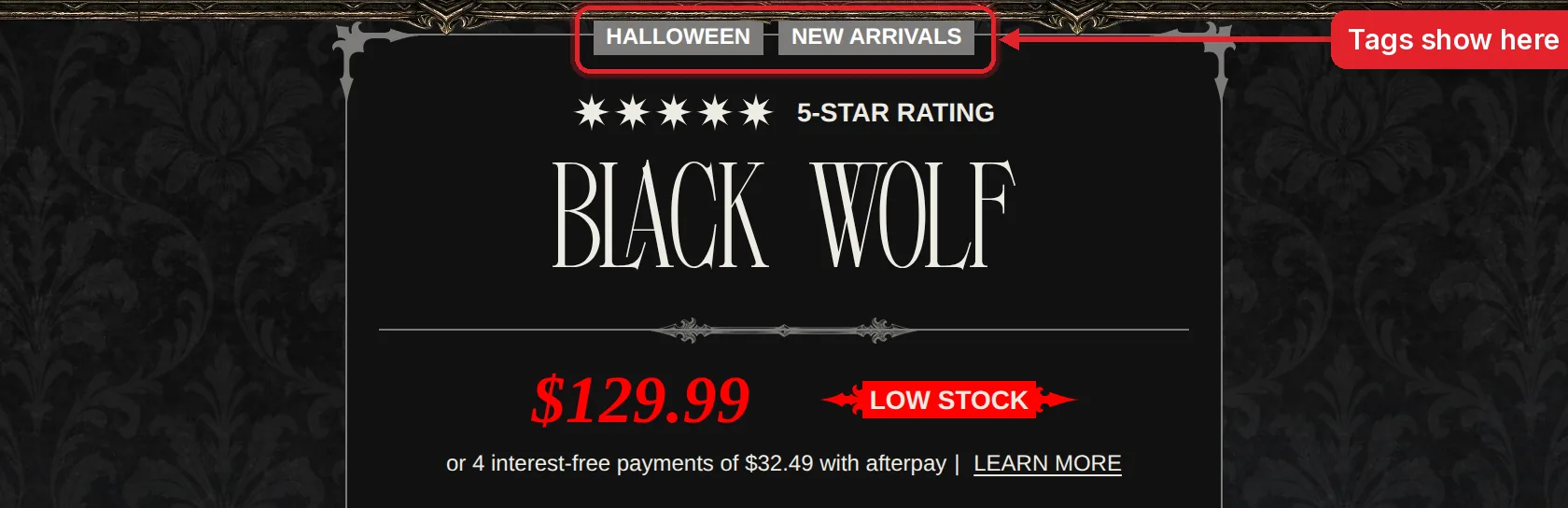
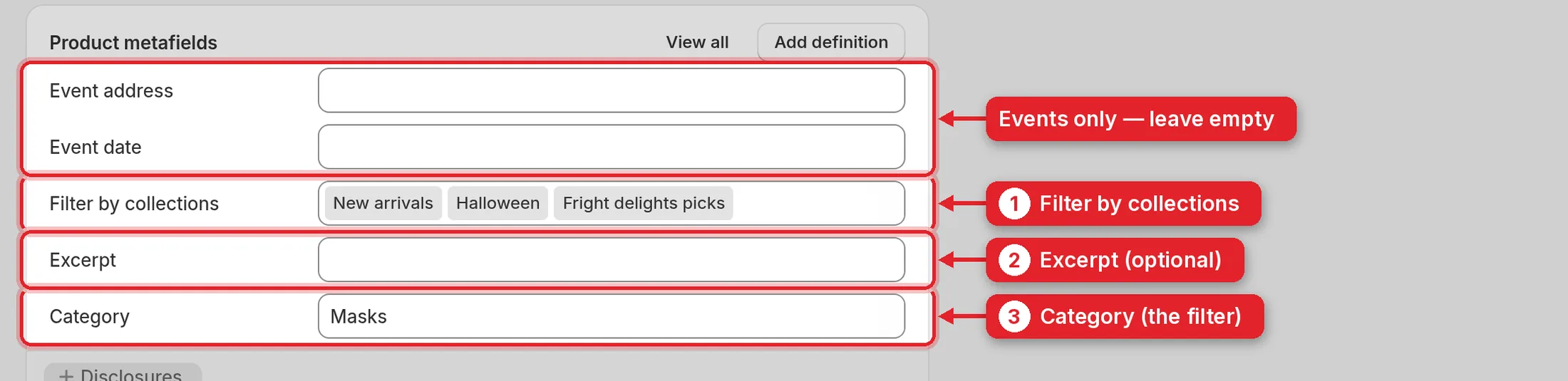
Scroll to the bottom of the product page, to Product metafields.
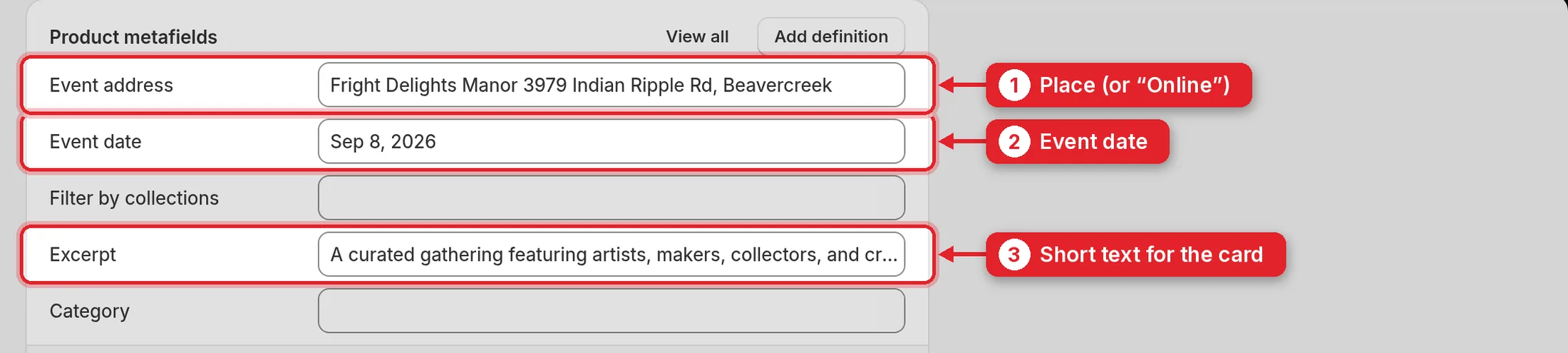
Event date and Event address are for events only, so leave them empty. Click Save: the product shows on the site within a minute, and its pages and filters update by themselves.
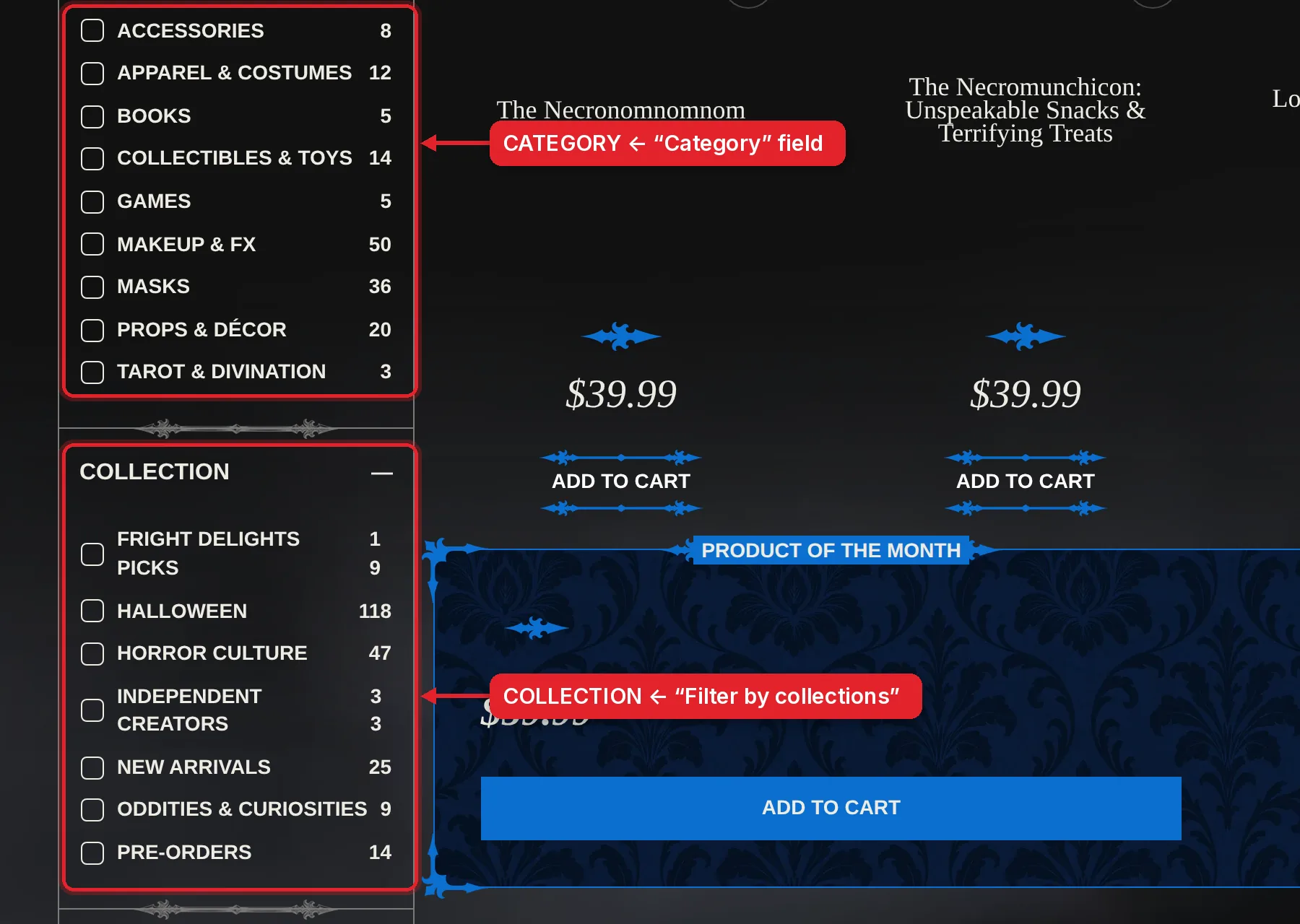
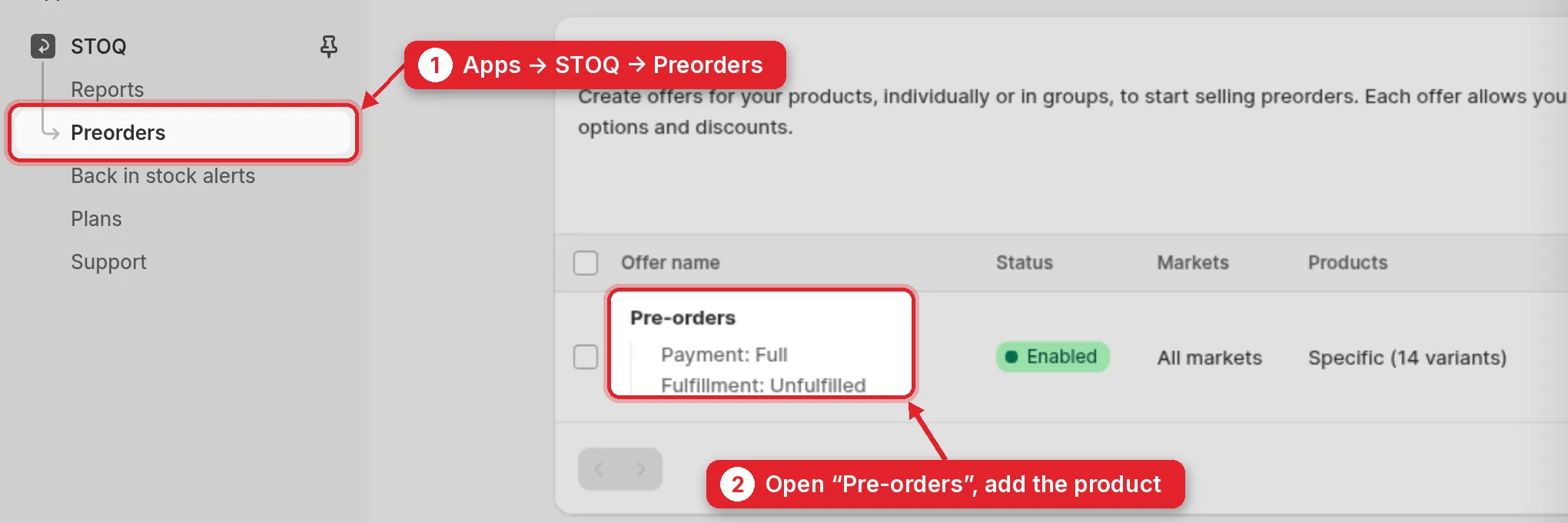
For an item you sell before it arrives:
New products are not added to the offer automatically. The free STOQ plan covers 10 pre-orders a month.
The Bestsellers block “Treasures of the Manor” on the home page shows the products of the collection with the same name. This collection is filled by hand: a new product appears there only after you add it.
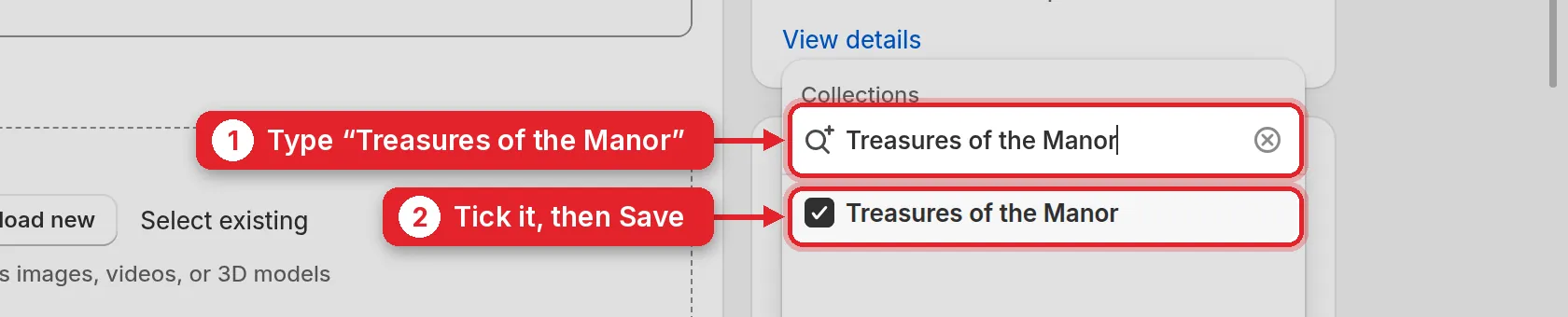
Open the product, find Collections in Product organization and click the + next to it:
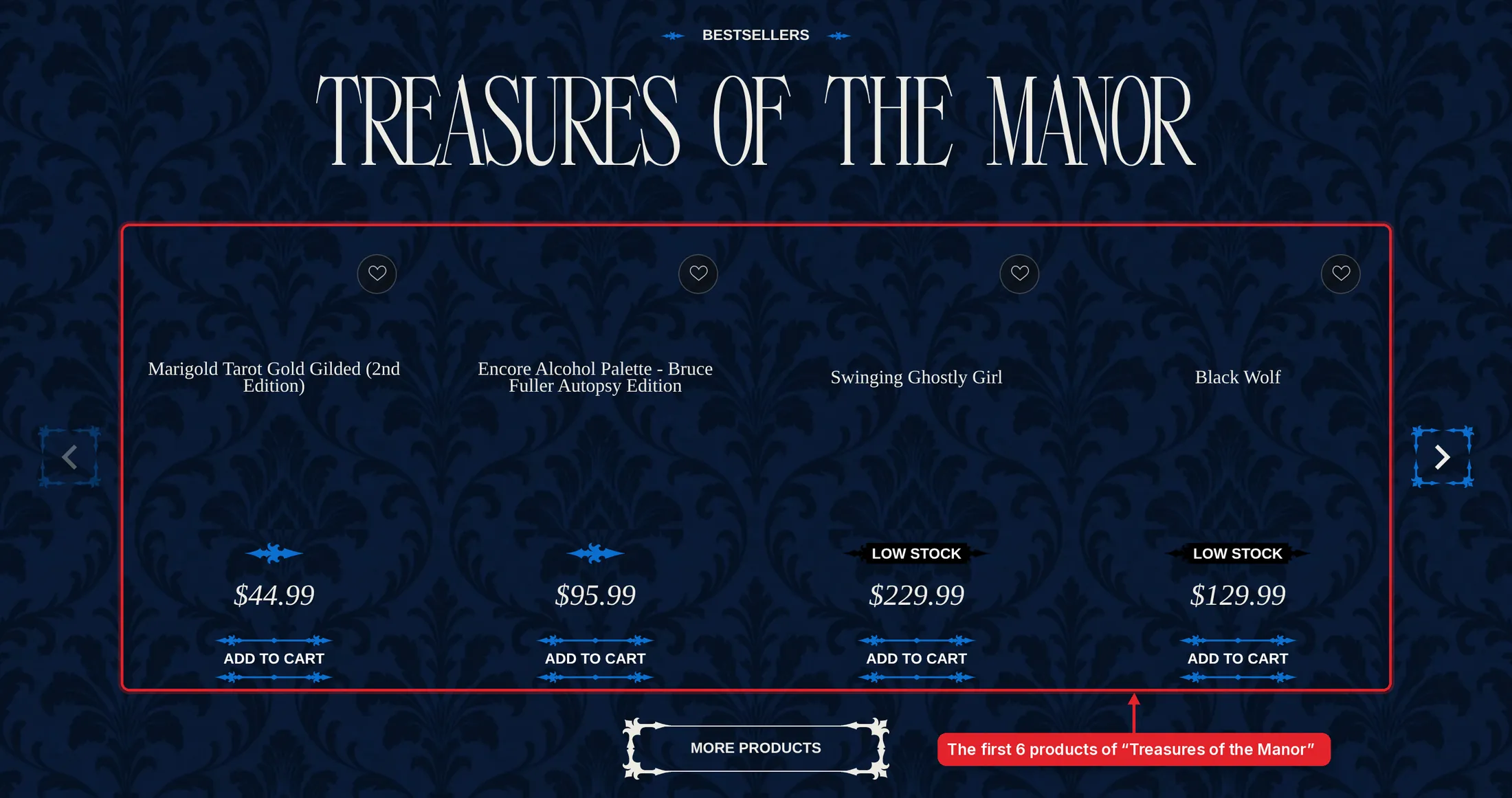
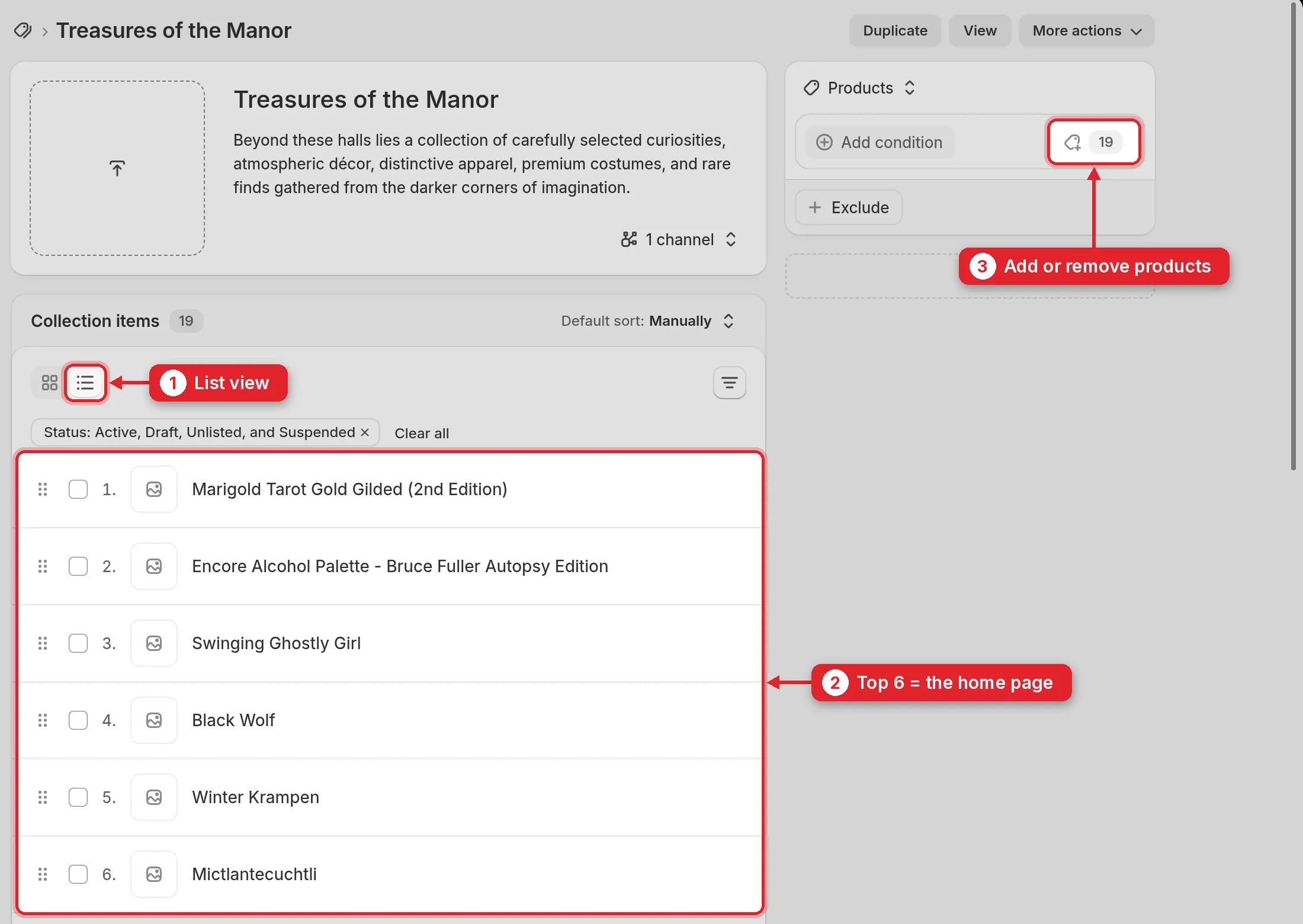
The block shows the first 6 products of the collection. To choose which six, open Products → Collections → Treasures of the Manor:
If a Save button appears at the top of the page, click it.
Part 3
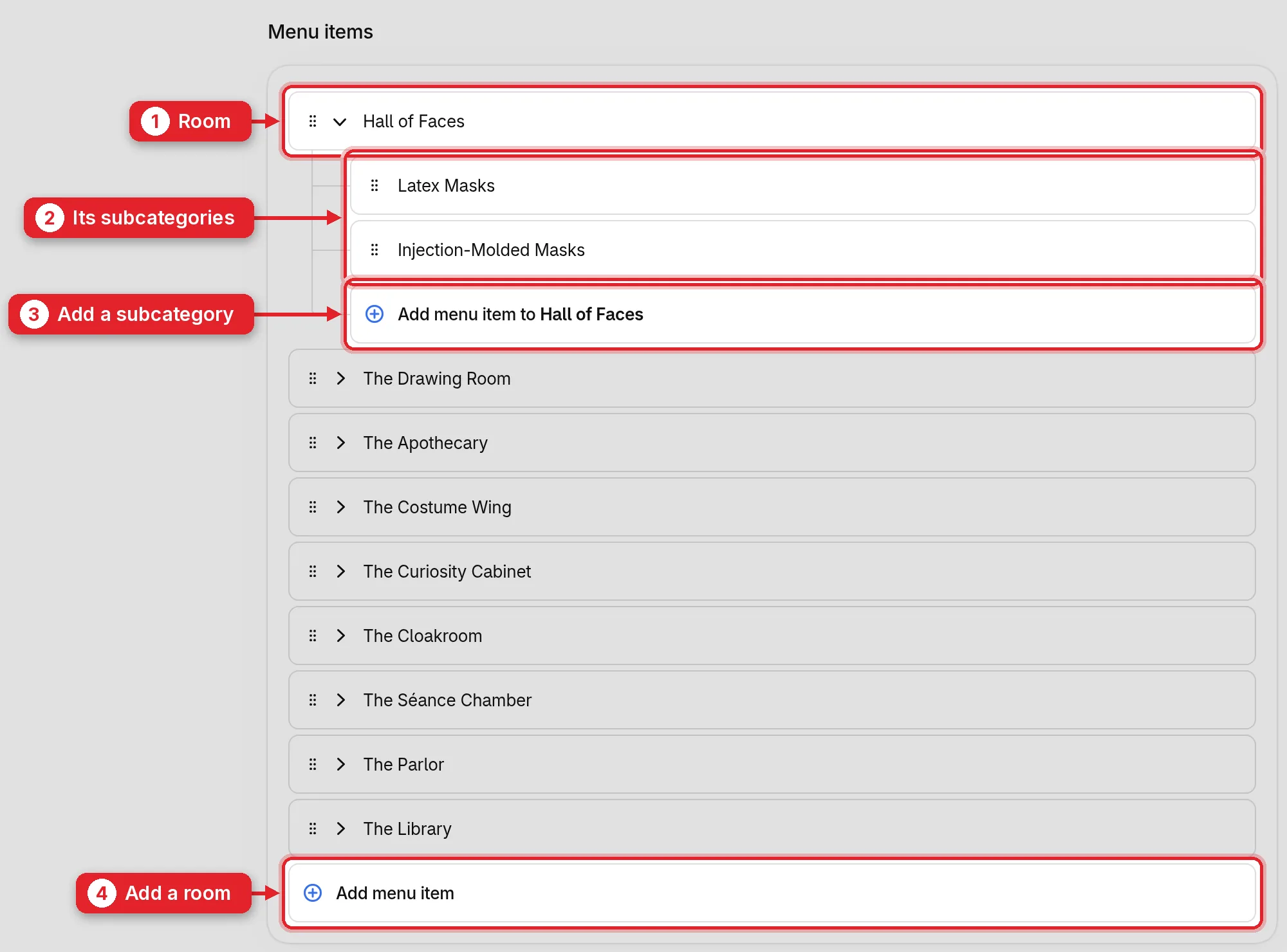
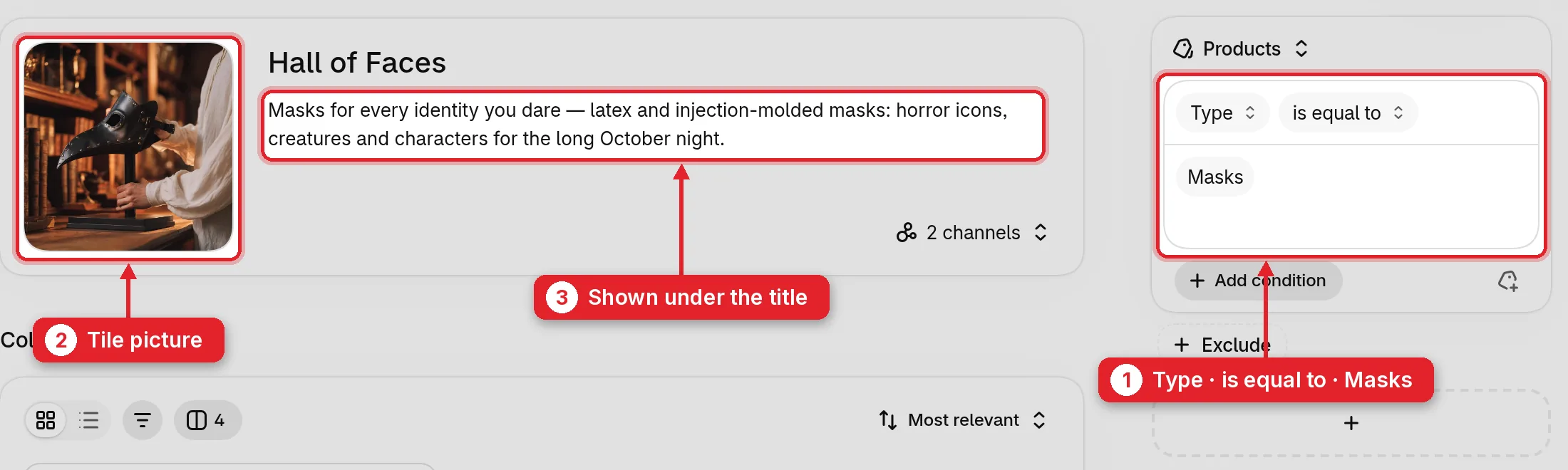
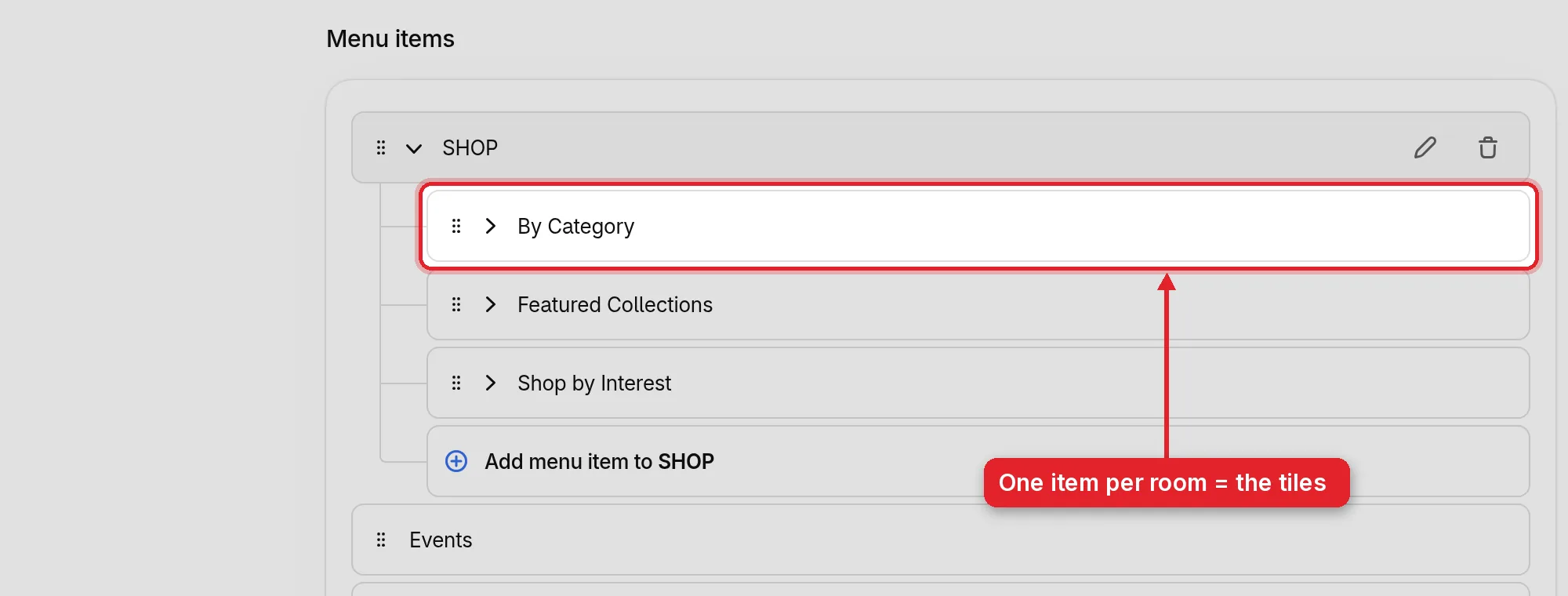
The shop is laid out as the rooms of the Manor: nine categories, each with its own subcategories. Products sort themselves into them, you only pick two fields on the product.
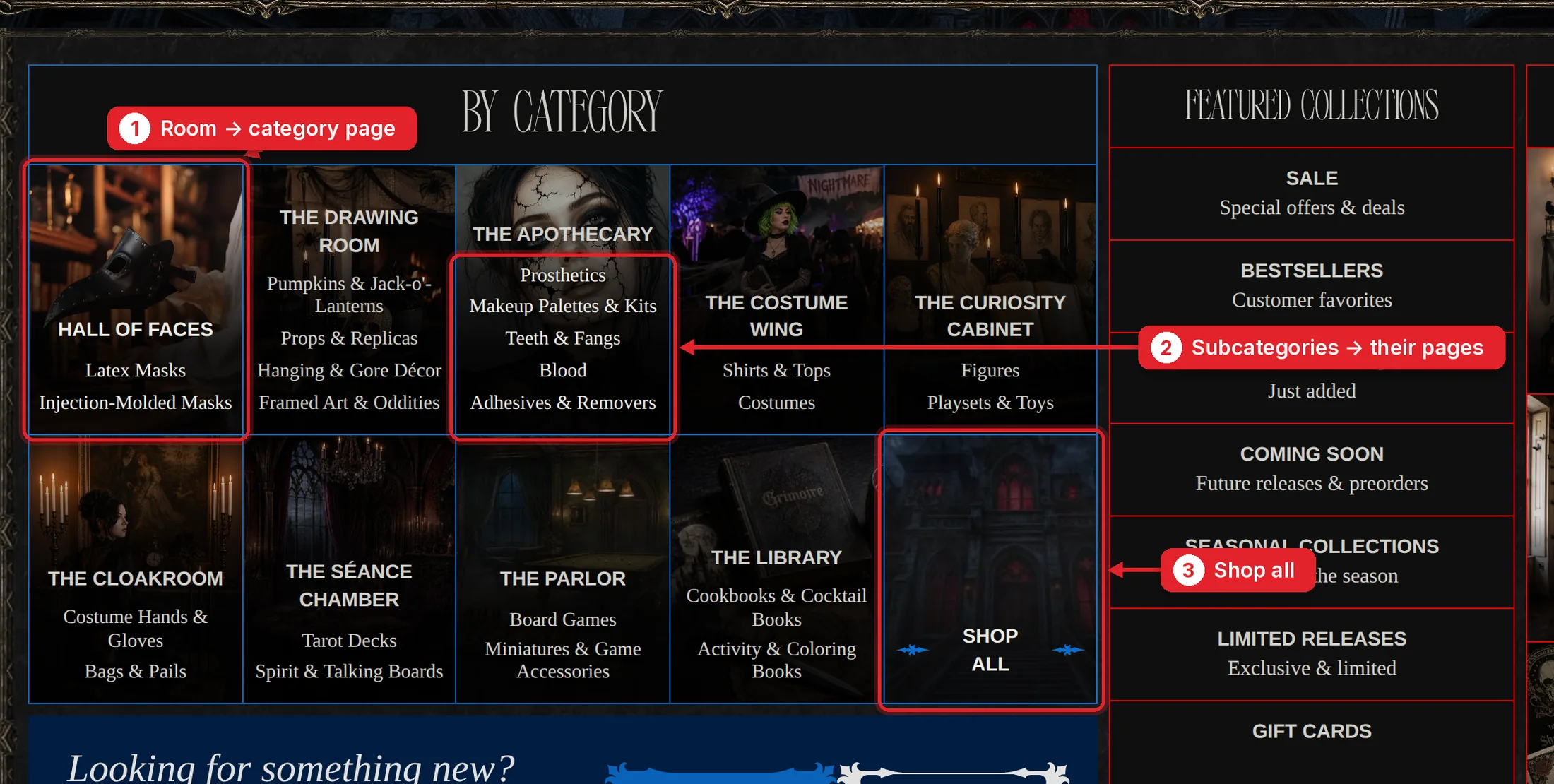
The rooms and their subcategories
| Type | Category page | Subcategories |
|---|---|---|
| Masks | Hall of Faces | Latex Masks, Injection-Molded Masks |
| Props & Décor | The Drawing Room | Pumpkins & Jack-o’-Lanterns, Props & Replicas, Hanging & Gore Décor, Framed Art & Oddities |
| Makeup & FX | The Apothecary | Prosthetics, Makeup Palettes & Kits, Teeth & Fangs, Blood, Adhesives & Removers |
| Apparel & Costumes | The Costume Wing | Shirts & Tops, Costumes |
| Collectibles & Toys | The Curiosity Cabinet | Figures, Playsets & Toys |
| Accessories | The Cloakroom | Costume Hands & Gloves, Bags & Pails |
| Tarot & Divination | The Séance Chamber | Tarot Decks, Spirit & Talking Boards |
| Games | The Parlor | Board Games, Miniatures & Game Accessories |
| Books | The Library | Cookbooks & Cocktail Books, Activity & Coloring Books |
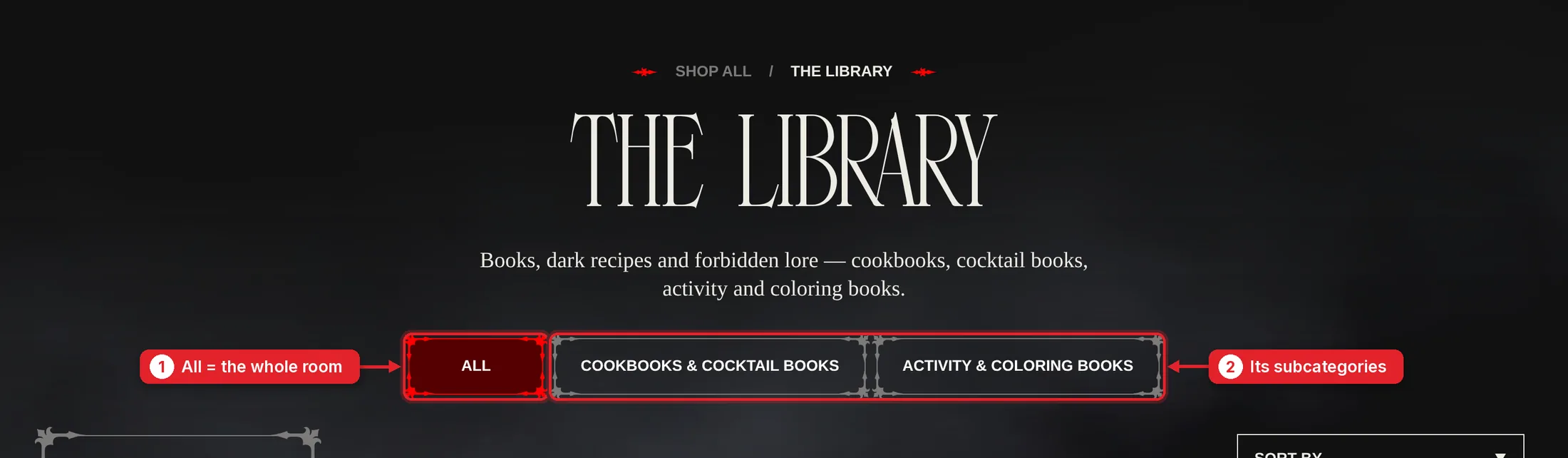

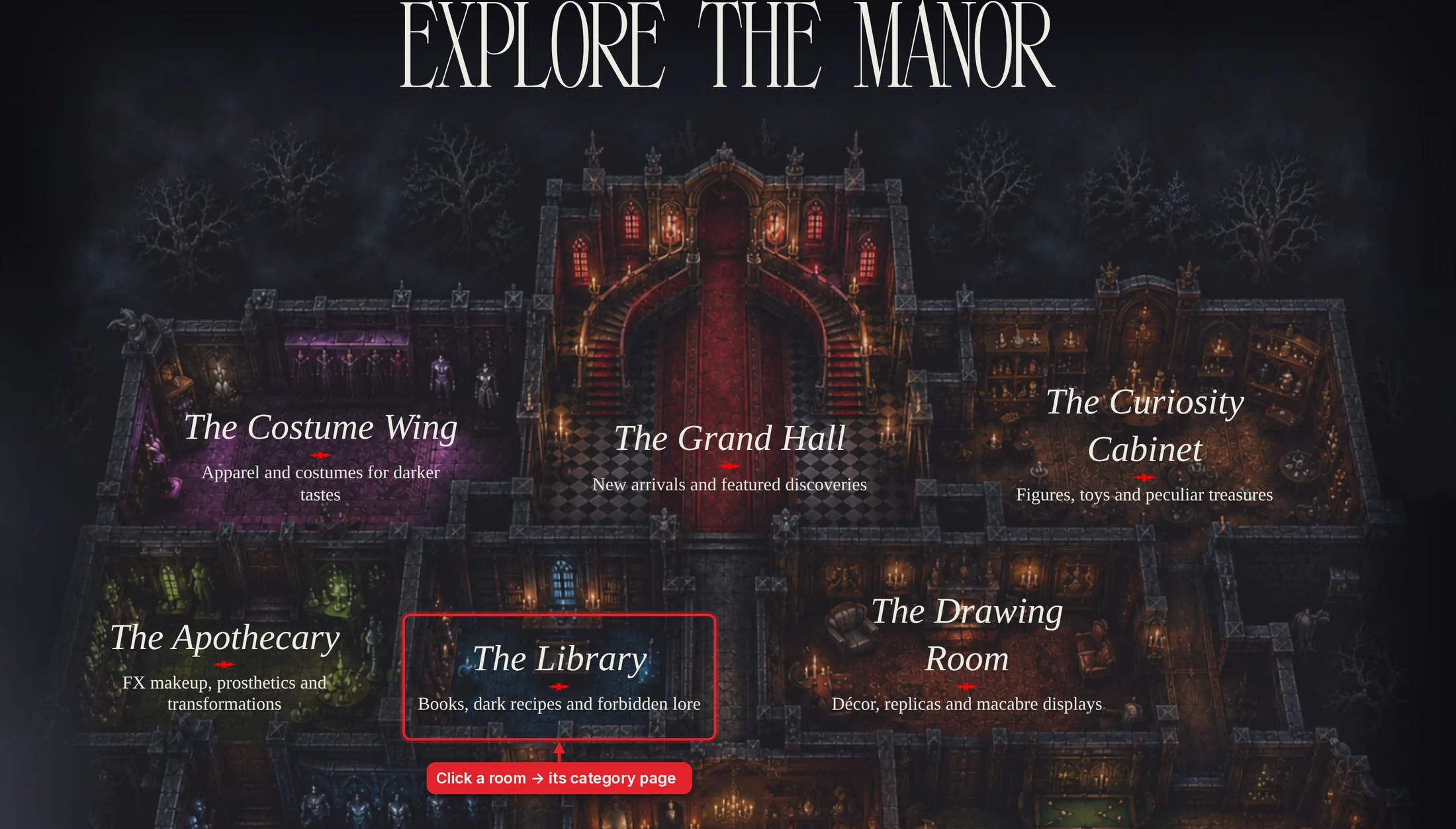
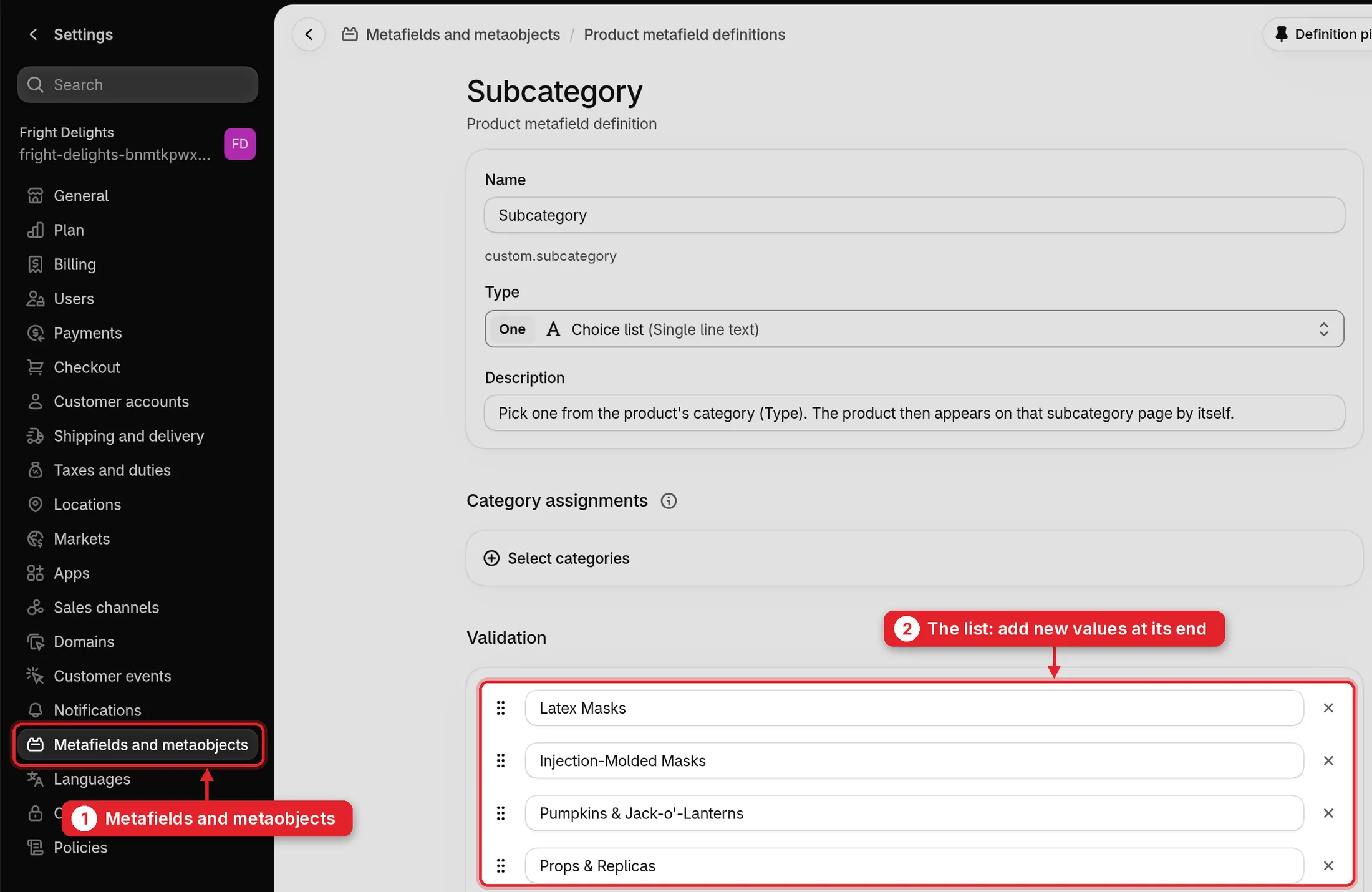
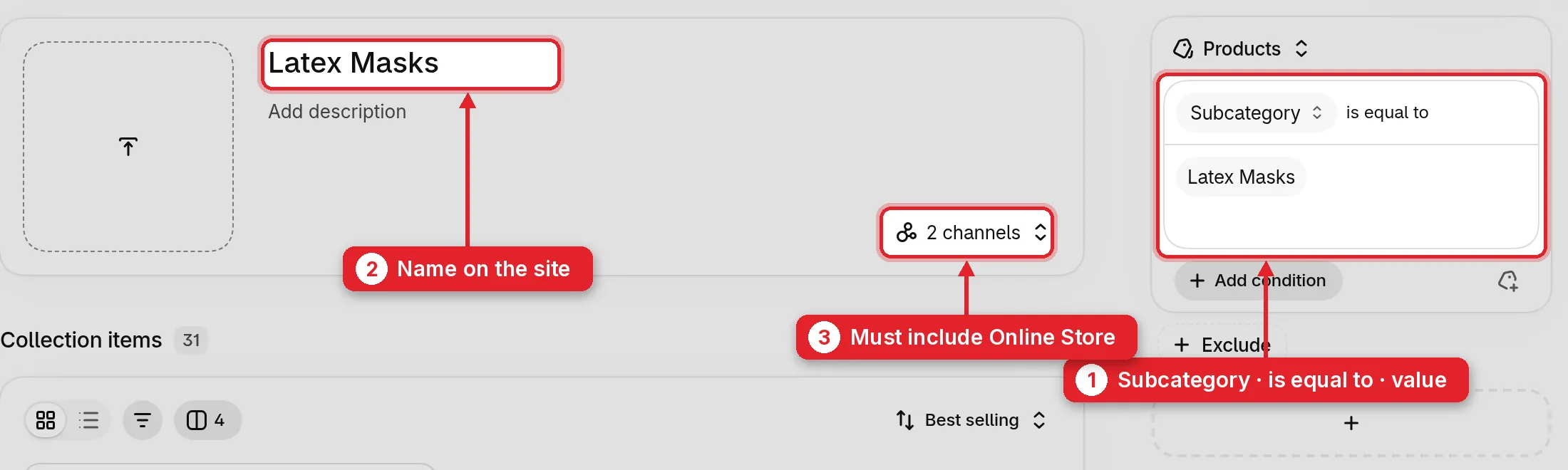
Three short steps, in this order:
From now on every product with this Subcategory shows on its page, in the SHOP menu, on the room page and in the filter.
Part 4
An event is a product too: the ticket. Once its category is Event Tickets, it appears by itself on the Events page, in the list of all events and on the home page.
Products → Add product, then:
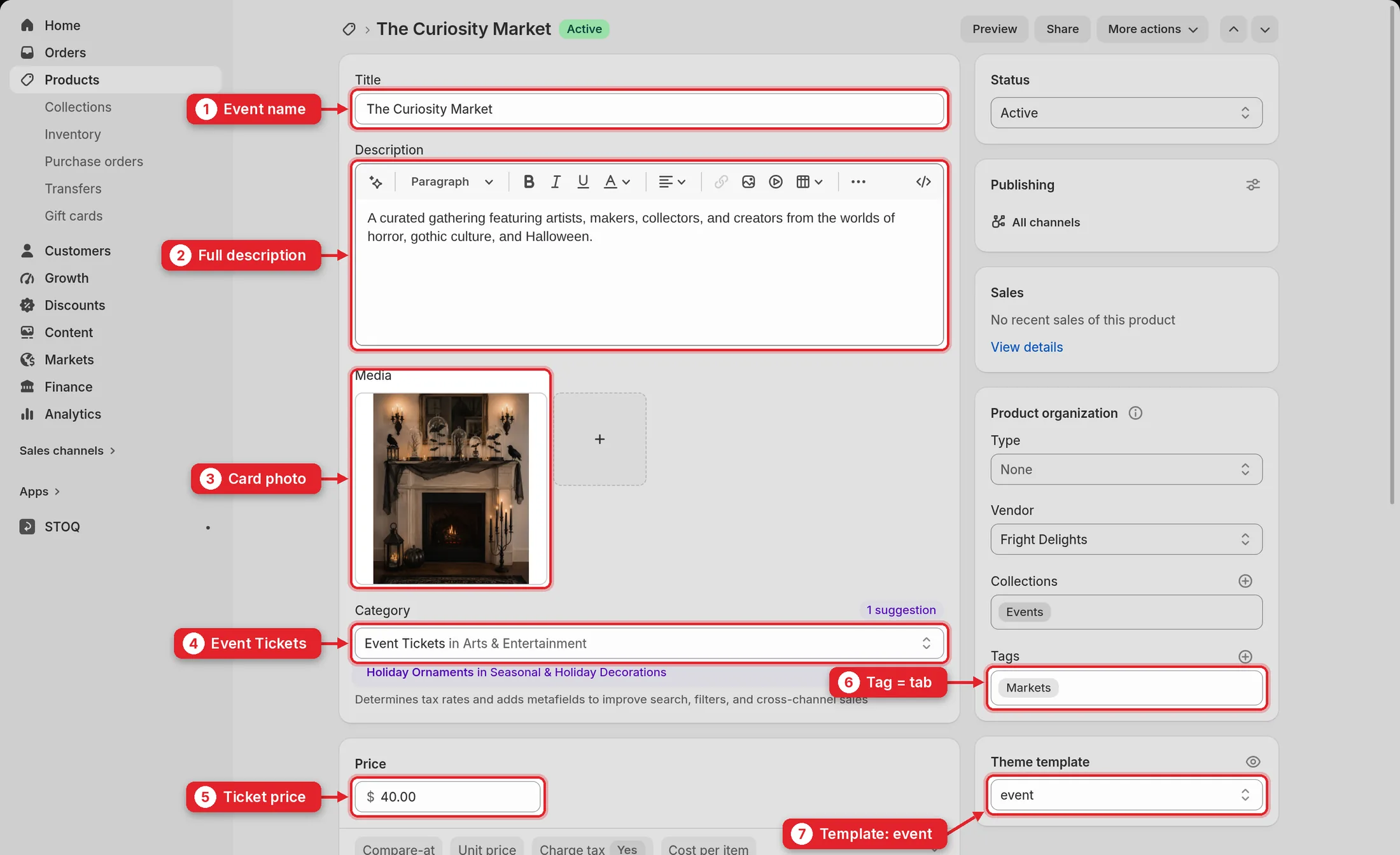
In Inventory enter how many tickets you sell. When it reaches 0, tickets can no longer be bought.

Scroll down to Product metafields:
Click Save. Leave Subcategory and Filter by collections empty for events.
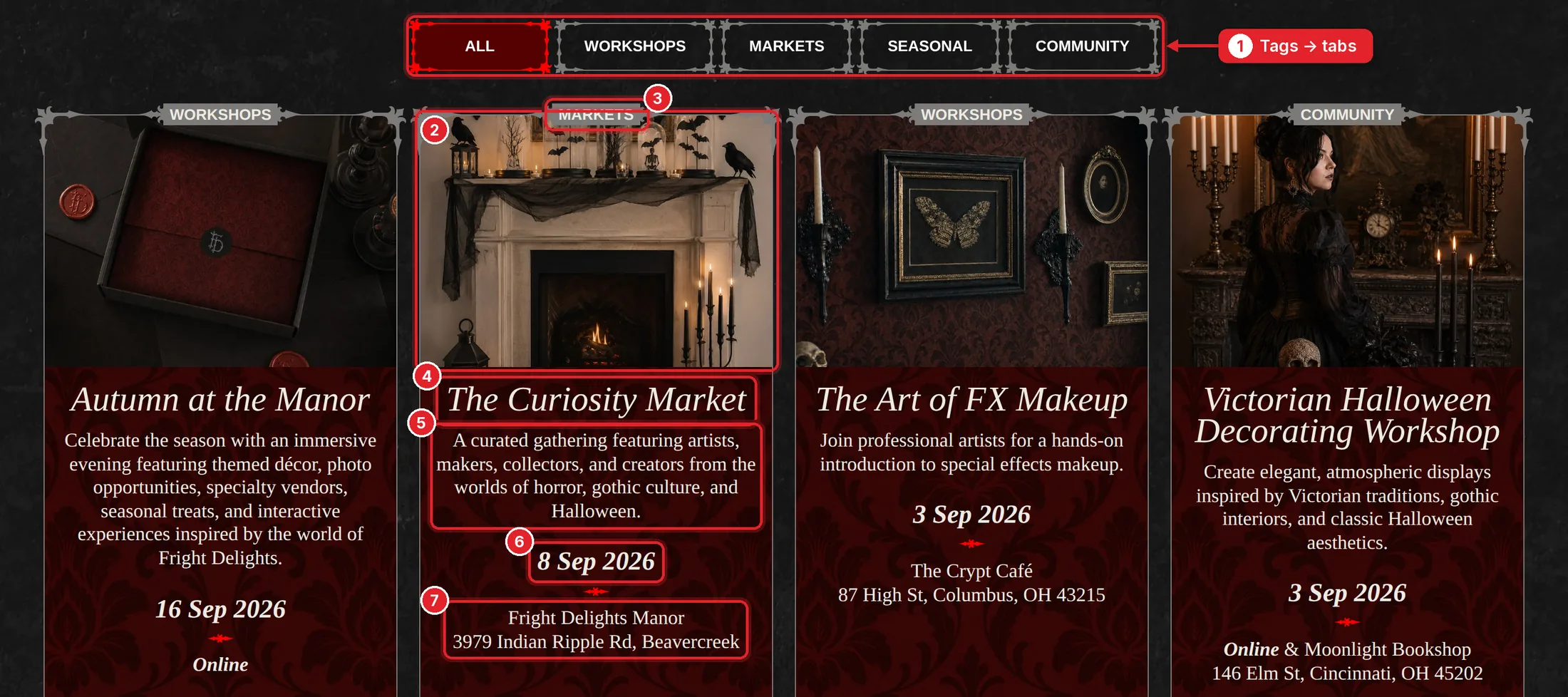
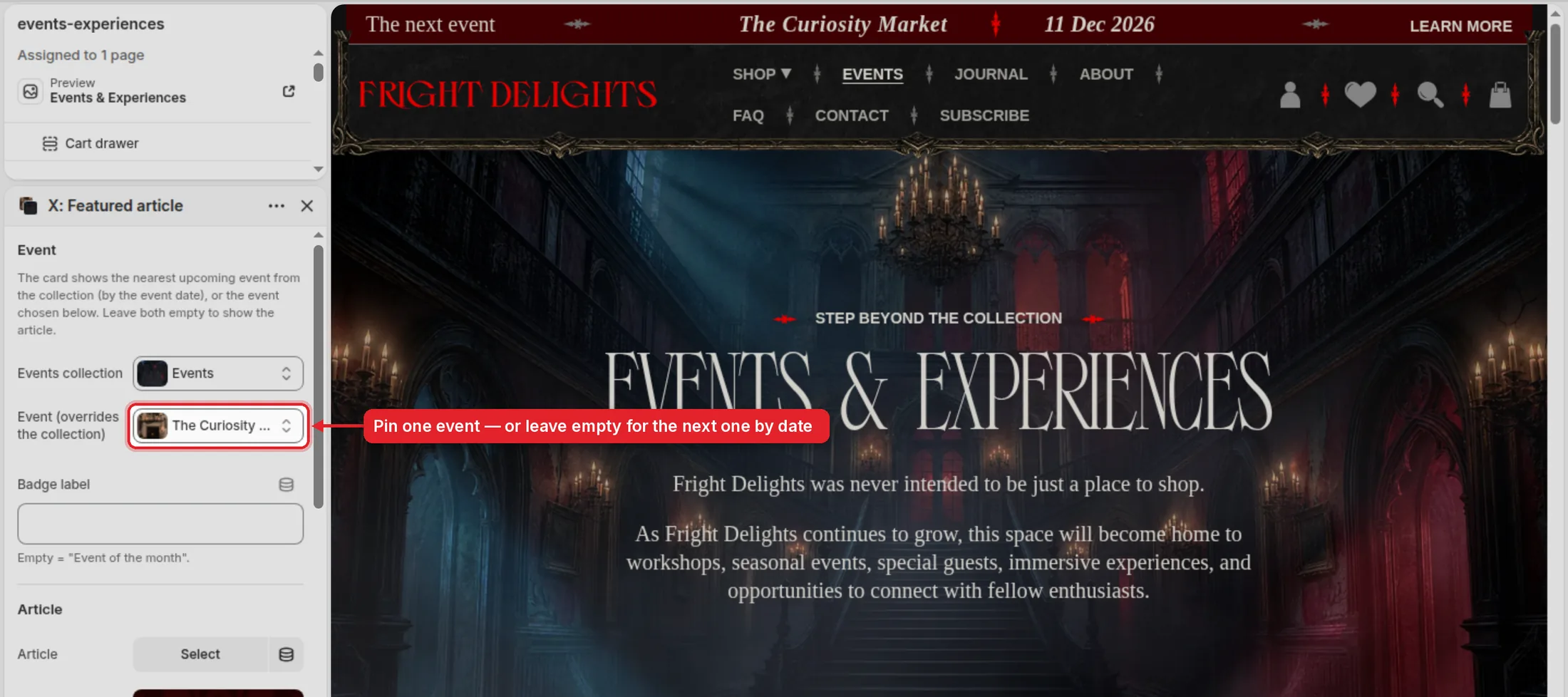
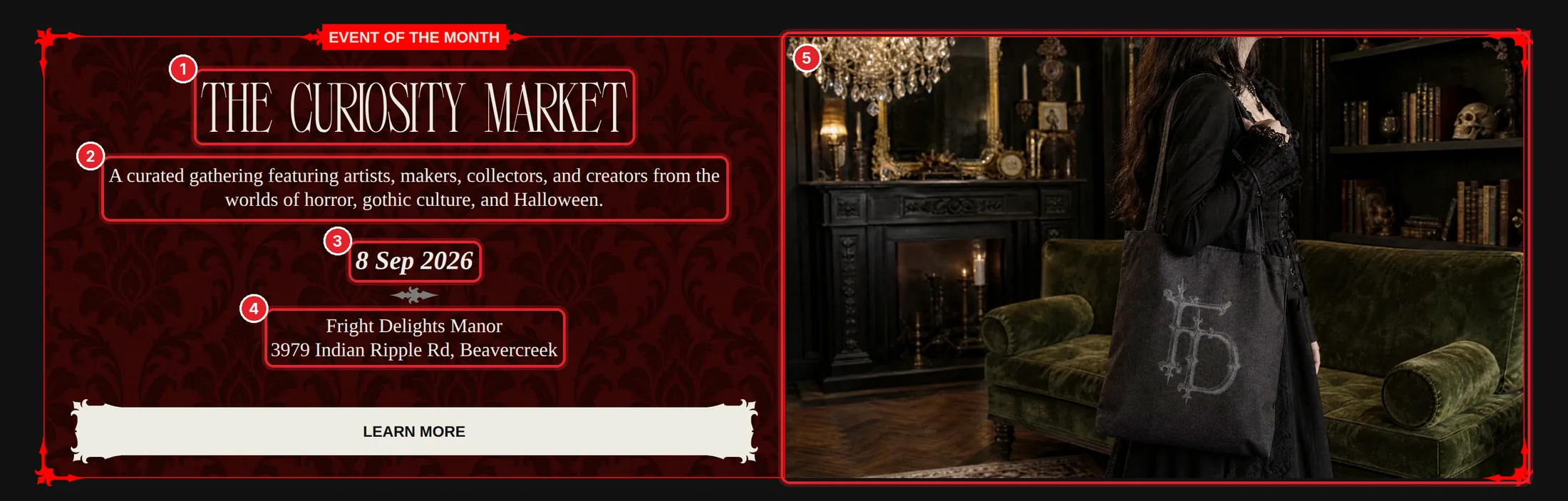
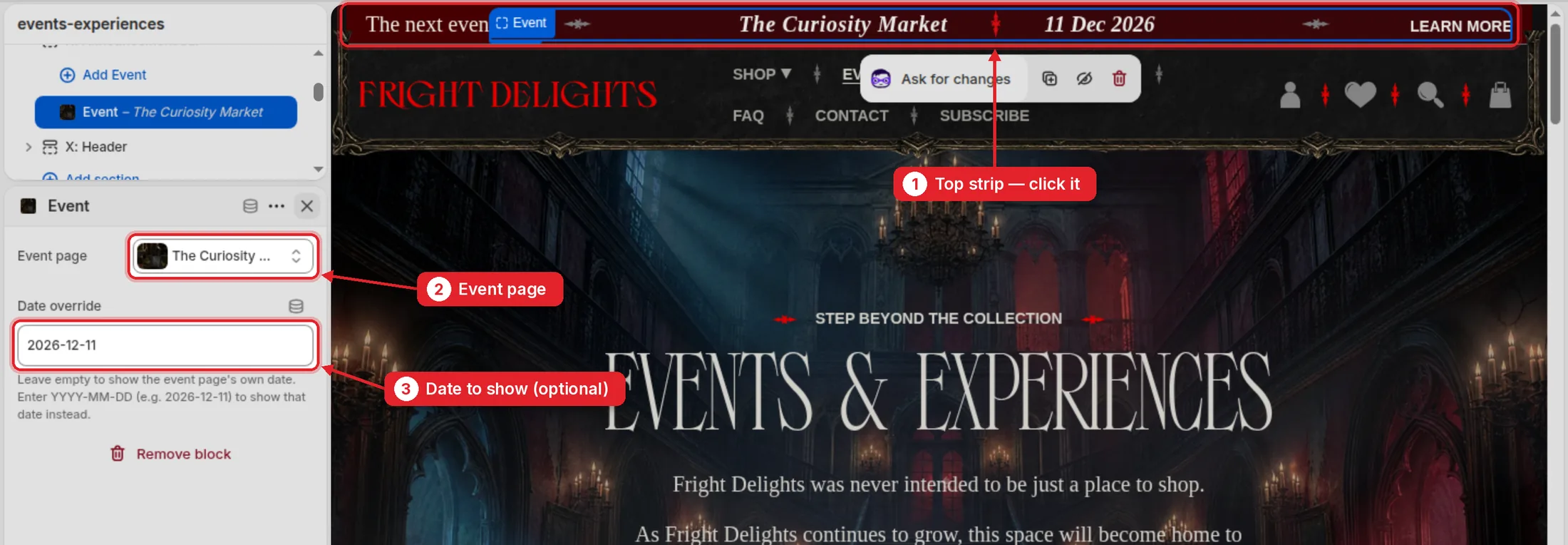
On the Events page the large card shows the nearest upcoming event by date. To change it, open the theme editor, choose Pages → events-experiences and click the block X: Featured article.
Leave Event (overrides the collection) empty to follow the dates automatically, or pick an event to pin it. The Curiosity Market is pinned there now, so clear the field once your real events are in. The red label above the card is Badge label (empty shows “Event of the month”).
Part 5
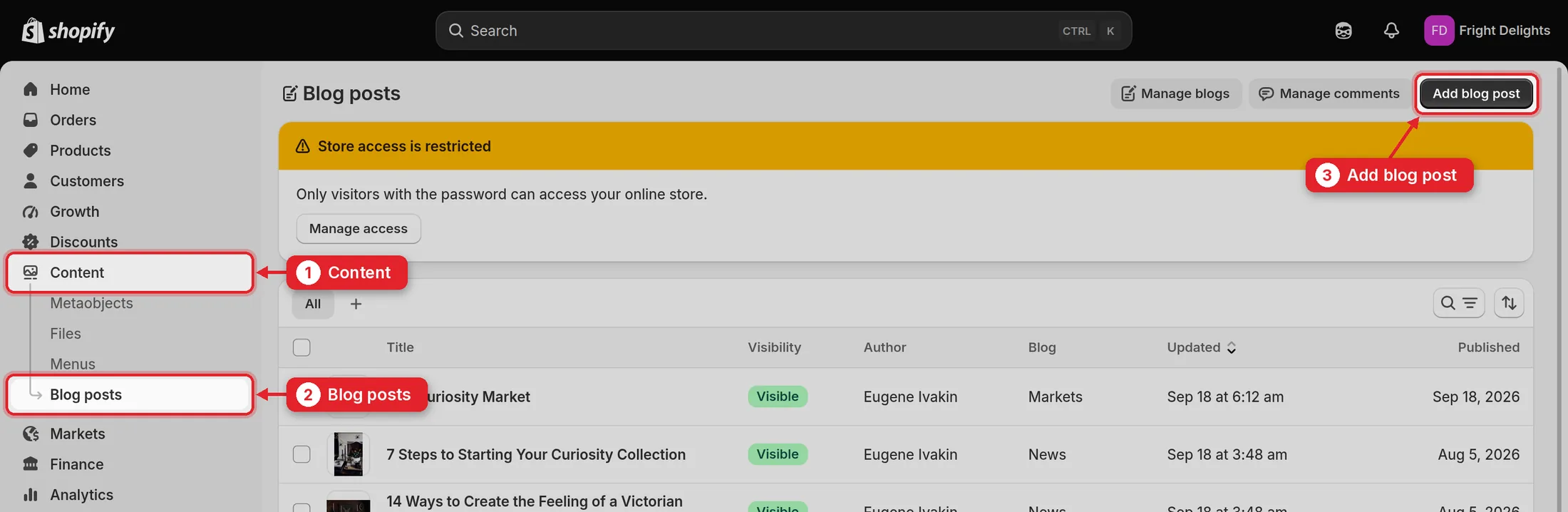
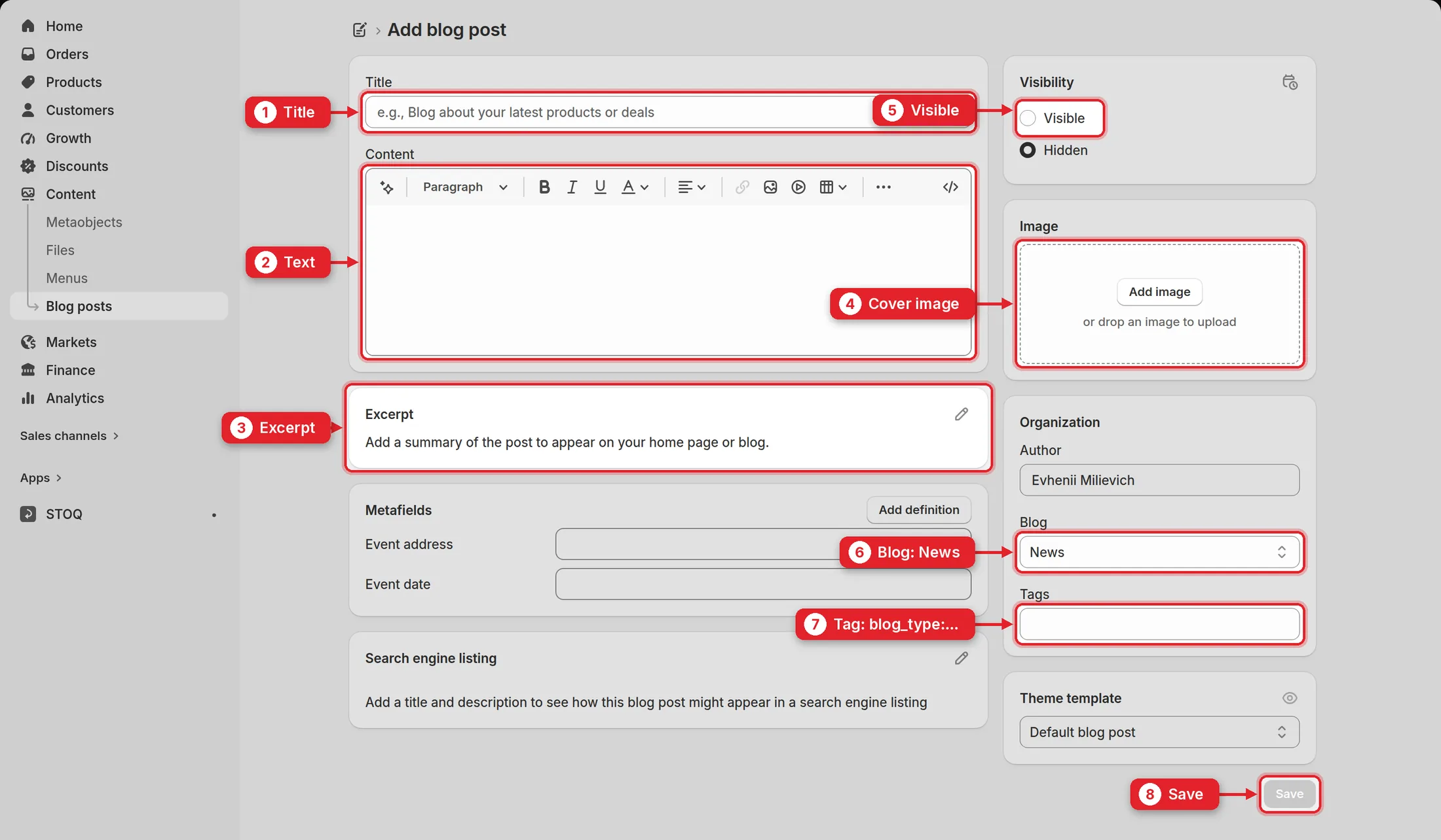
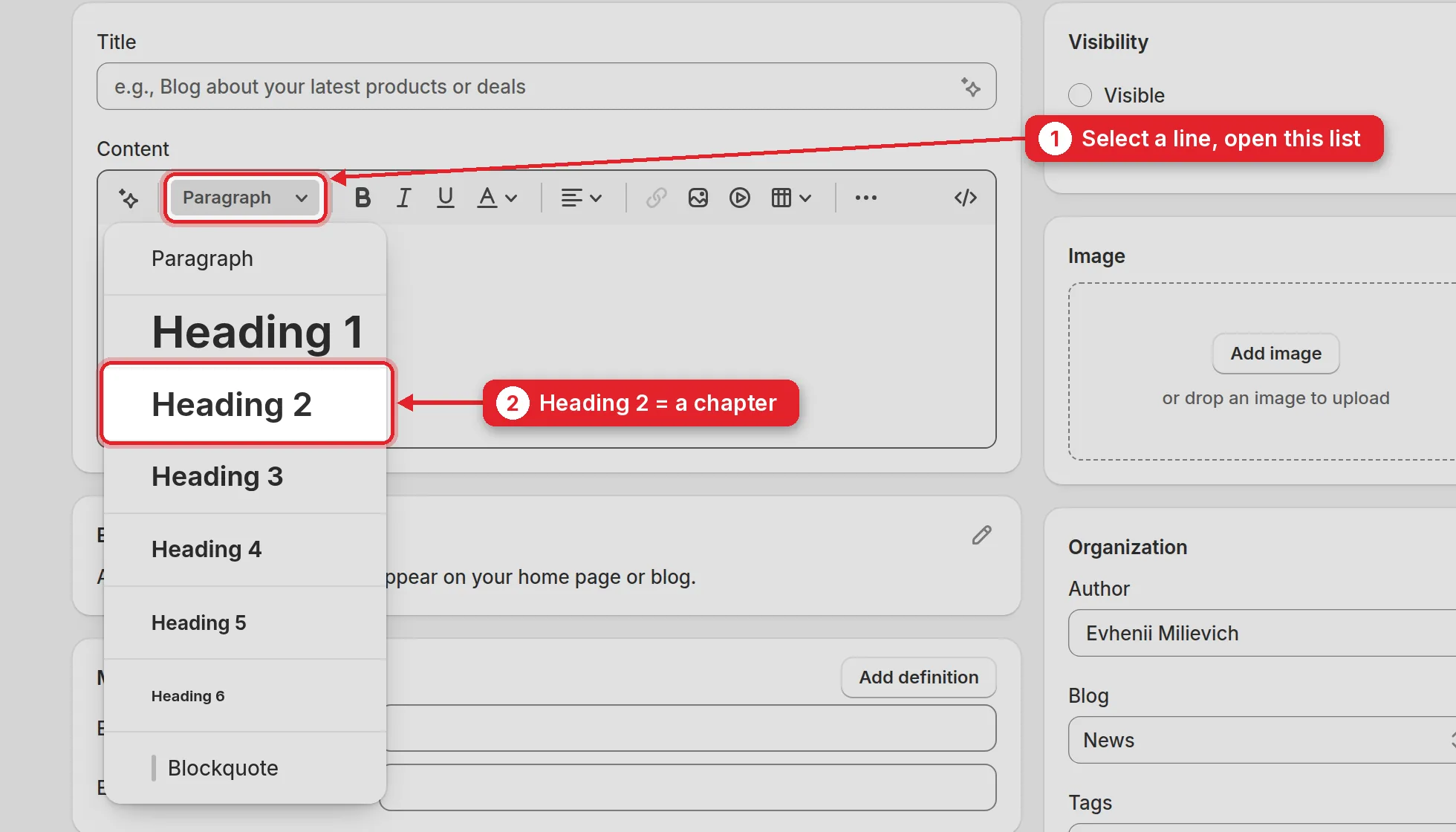
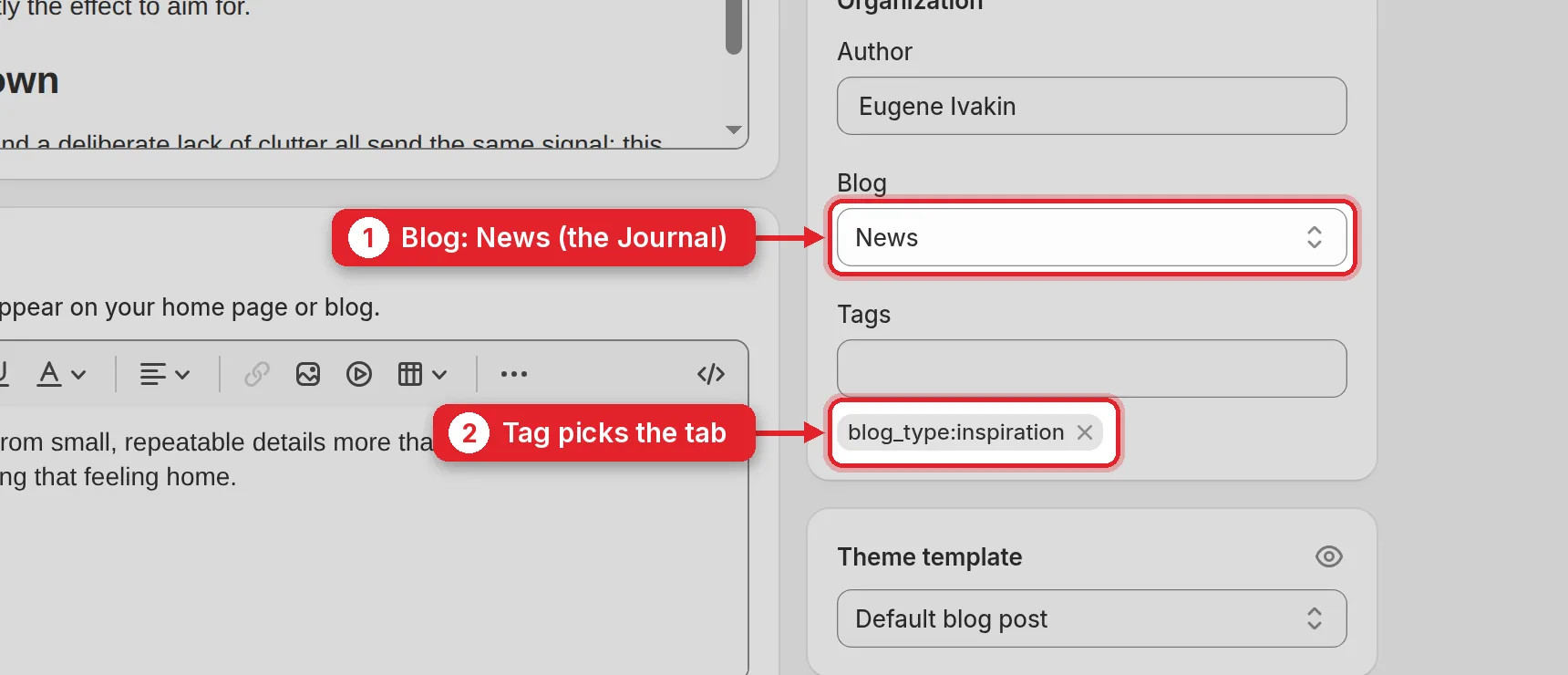
The Journal is the blog called News. New posts appear on the Journal page and in the “Fright Delights’ Journal” blocks across the site.